Carrier shipping rates are calculated based on the size and weight of the package you’re sending. If your WooCommerce store sends rate requests with inaccurate package dimensions, you’ll either overcharge customers (and lose sales) or undercharge (and eat the difference). The solution is accurate packing calculation — and that’s what 3D bin packing does.
What Is 3D Bin Packing?
3D bin packing is an algorithm that determines how a set of items can be arranged inside one or more boxes, given each item’s dimensions and each box’s dimensions. It considers not just whether items fit, but finds the smallest valid combination of boxes.
The TheForge EasyPost Shipping plugin runs this algorithm for every cart — testing every combination of item orientations (rotating items to try all six faces) and every combination of available boxes — to find the configuration that uses the smallest total box volume.
Why It Matters for Shipping Rates
Carriers charge based on whichever is greater: actual weight or dimensional weight. Dimensional weight is calculated as (length × width × height) / divisor. If you tell the carrier your box is 24″ × 24″ × 24″ when it’s actually 12″ × 12″ × 8″, you’ll be quoted a much higher rate.
Accurate packing calculation means:
- More accurate rate quotes at checkout
- No surprise carrier invoices for dimensional weight overages
- Fewer wasted boxes (smaller packaging = lower material costs)
- Potentially lower actual shipping costs from better box selection
Setting Up Your Box Sizes
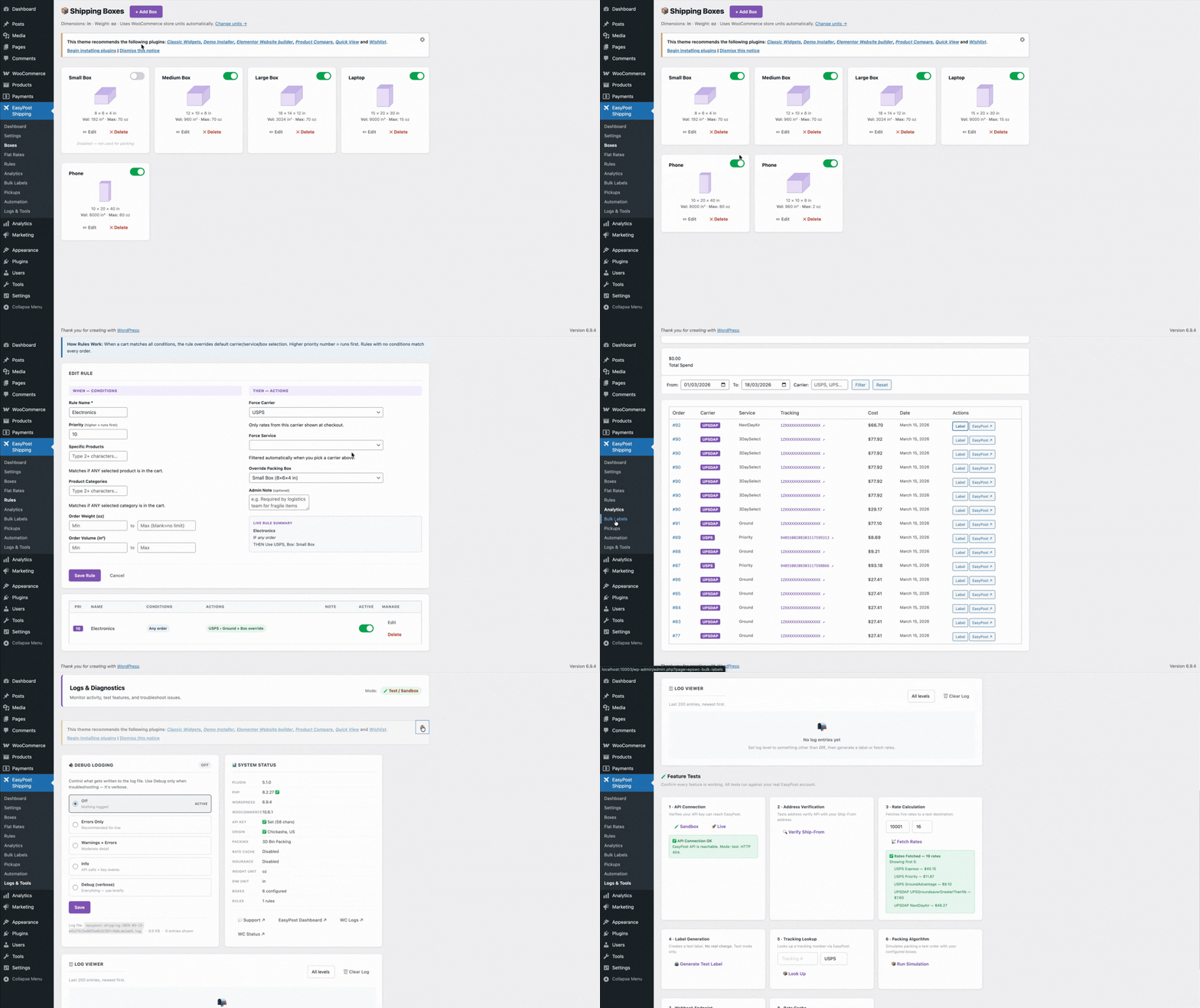
Go to WooCommerce → Settings → Shipping → EasyPost → Packing and add the box sizes you actually use in your warehouse. For each box, enter:
- Box name (for your reference)
- Outer dimensions (length × width × height)
- Inner dimensions (what items can actually fit inside)
- Box weight (the weight of the empty box, added to the shipment weight)
- Max weight (how much the box can safely hold)
Add all the box sizes you use. The more accurately your box inventory is configured, the more accurate your rates will be.
Product Dimensions and Weight
For the packing algorithm to work, every product in your WooCommerce store needs weight and dimensions set. These are standard WooCommerce fields on the product → Shipping tab. If a product has no dimensions set, the plugin falls back to a configurable default — but it’s much better to set them correctly at the product level.
Multi-Box Shipments
When an order’s items don’t fit in a single box, the algorithm splits the shipment into multiple boxes and rates them as a multi-piece shipment. EasyPost handles multi-piece shipments natively, so the rate you get back is accurate for the actual number of boxes you’ll be shipping.
Overriding the Packing Algorithm
Some products should always ship in their own box — fragile items, products with awkward shapes, or anything that can’t be combined with other products for safety or quality reasons. You can mark individual products as “always ship in own box” and the packing engine will exclude them from combination packing.
Questions about packing configuration? The ThePluginForge support page has documentation and a help desk.