Once a label is generated and a package is on its way, the tracking experience is one of the most important parts of your customer’s post-purchase journey. “Where is my order?” is the most common customer service question in ecommerce — and with proper tracking automation, you can answer it before the customer even asks.
How EasyPost Tracking Works
EasyPost provides a unified tracking API that works across all connected carriers. When a label is generated with the TheForge EasyPost Shipping plugin, a tracking number is automatically associated with the order in WooCommerce.
EasyPost then monitors the shipment and sends webhook events to your site as the package moves through the carrier network — picked up, in transit, out for delivery, delivered, exception, and so on.
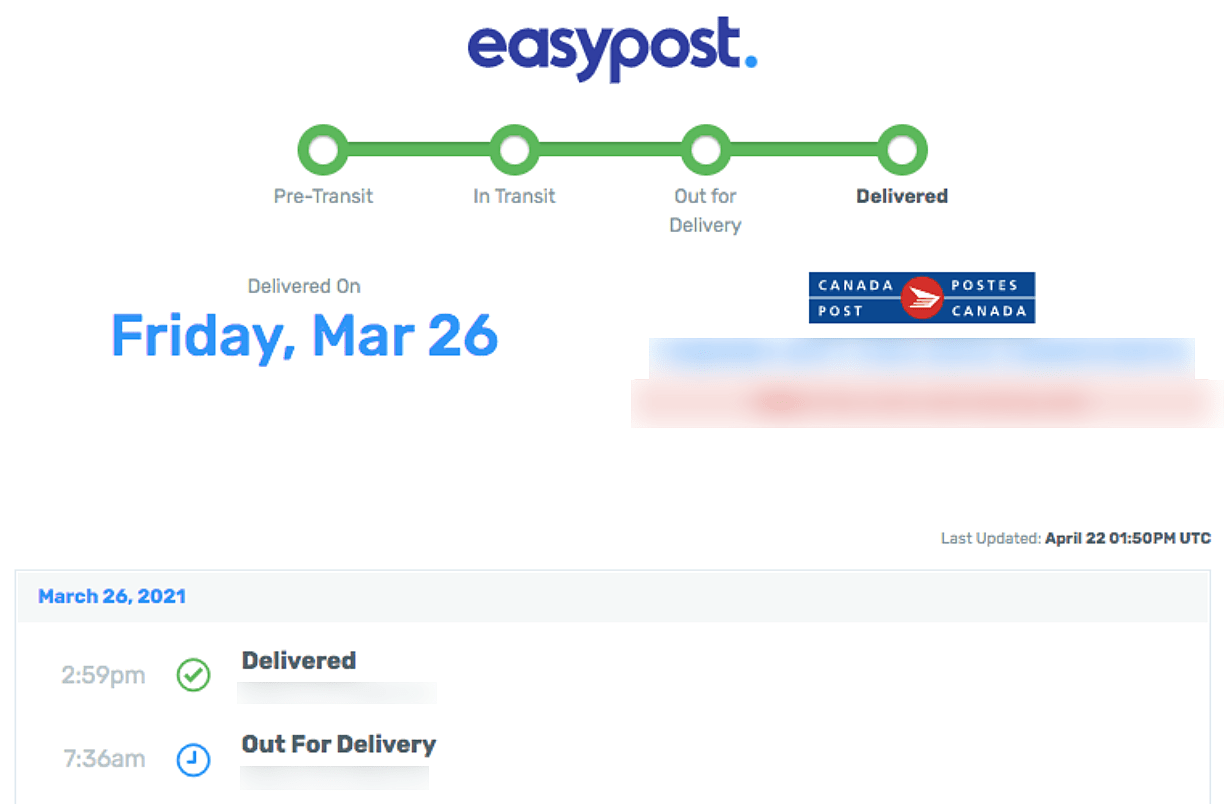
Automatic Order Status Updates
The plugin listens for EasyPost tracking webhooks and updates your WooCommerce order status automatically. You can configure which tracking events trigger which order status changes:
- Label created → move order to “Shipped”
- In transit → add order note with tracking update
- Out for delivery → add order note
- Delivered → move order to “Completed”
- Exception / delivery failure → add flagged order note for manual review
Customer Tracking Emails
When a label is generated, the plugin can automatically email the customer their tracking number and a link to the carrier’s tracking page. The email uses your existing WooCommerce transactional email templates, so it matches your branding.
For each carrier, EasyPost provides a direct tracking URL. The plugin formats this into a customer-friendly link — e.g. “Track your USPS shipment →” — rather than a raw tracking number the customer has to paste somewhere.
Tracking Numbers on the Order Page
Every generated tracking number appears on the WooCommerce order screen (for you as the admin) and on the customer’s My Account → Orders page. Customers can click the tracking link directly from their account without needing to find the email.
Webhook Setup
For tracking webhooks to work, EasyPost needs to be able to send events to your site. The plugin provides your webhook URL in the settings — you paste this into your EasyPost dashboard under Webhooks. Once configured, tracking events flow automatically.
If your site is on a local development environment or behind a firewall, webhooks won’t be receivable — this is expected. Webhooks only work on publicly accessible production sites.
Tracking Without Webhooks
If webhooks aren’t an option, the plugin can poll EasyPost for tracking updates on a schedule using WordPress cron. This is less real-time than webhooks but still gives you automated status updates — just with a delay of up to your configured polling interval.
Need help configuring tracking? Visit the ThePluginForge support page.