If you’re fulfilling more than a handful of orders a day, printing shipping labels one at a time is one of the biggest drains on your operational time. Open order, create shipment, select service, generate label, download PDF, print — then repeat for every single order. At 50 orders a day, that process takes most of your morning.
The TheForge EasyPost Shipping & Bulk Label Printing plugin was built specifically to solve this. Here’s a complete look at how the labels panel works and how to get the most out of it.
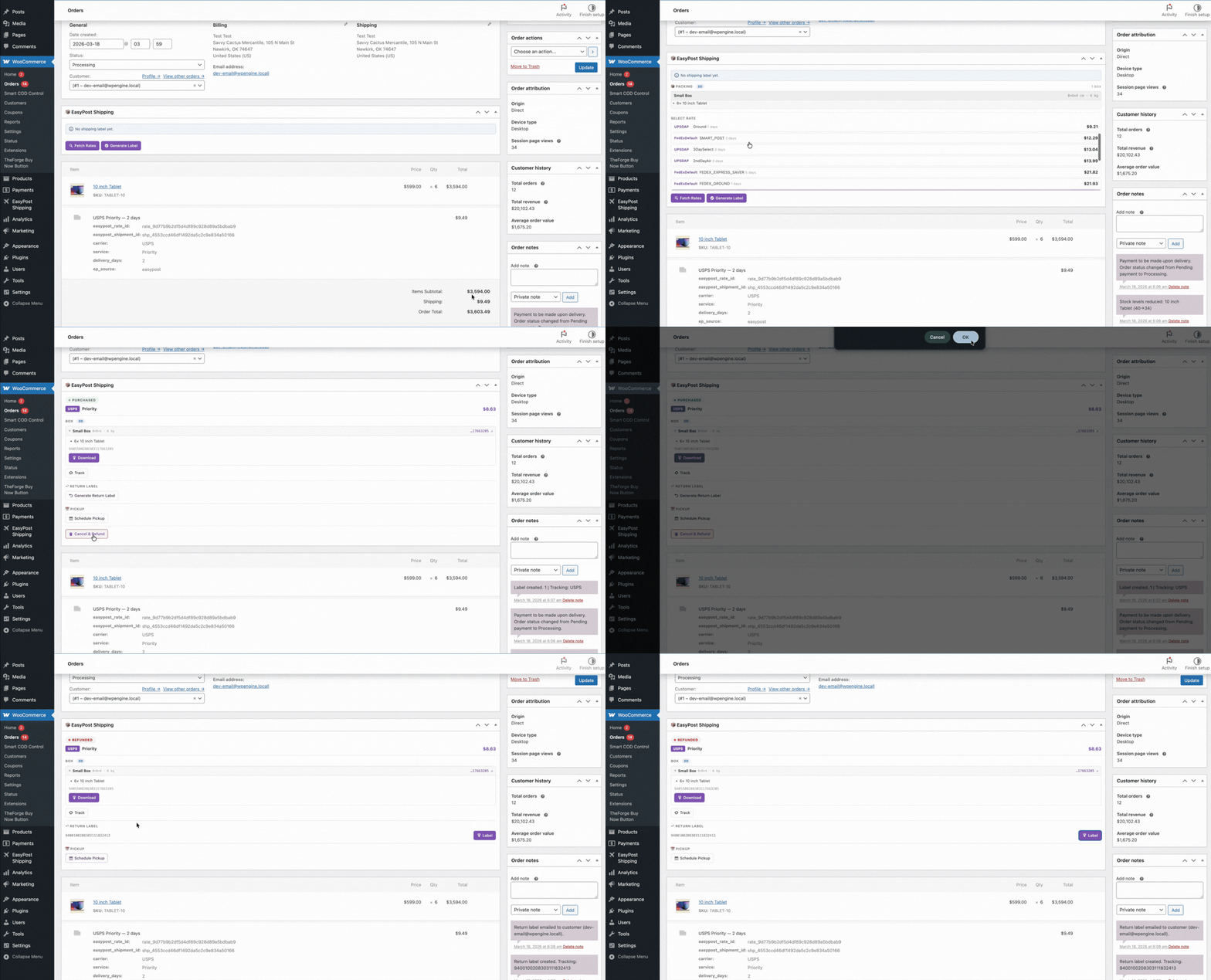
The Labels Panel: What It Is
The labels panel lives directly inside the WooCommerce orders screen. You don’t need to visit a separate dashboard or log into a carrier portal. Every order you have in WooCommerce is accessible from the same interface you already use to manage your store.
From the labels panel you can:
- Generate a label for any individual order in one click
- Select multiple orders and generate all their labels at once
- Download all generated labels as a single merged PDF
- Void labels you no longer need
- Track shipment status without leaving WordPress
How Bulk Label Generation Works
Select your orders using the standard WooCommerce order checkboxes, then choose Generate Labels from the bulk actions dropdown. The plugin sends each order’s details to EasyPost — customer address, package dimensions, selected carrier service — and receives a label back for each one.
The plugin uses the shipping service the customer chose at checkout wherever possible. If no carrier was selected (for example, on orders placed before the plugin was installed), you can configure a default fallback carrier and service for bulk generation.
Merging Labels into a Single PDF
Once labels are generated, click Print All Labels. The plugin fetches every generated label and merges them into a single PDF file — one download, one print job. If you’re using a thermal label printer (which you should be — they’re dramatically faster than laser or inkjet for shipping labels), the PDF is formatted to print one label per page.

Voiding Labels
Printed a label for an order that was then cancelled? No problem. Void the label directly from the order screen and EasyPost will request a refund from the carrier. Most carriers process voids within 24–48 hours.
Package Dimensions and Weight
For accurate labels, the plugin needs package dimensions and weight. You can set these at the product level (the plugin reads WooCommerce’s built-in weight and dimensions fields) or define custom boxes at a store level. The 3D bin packing engine figures out the best box combination automatically — you don’t have to calculate it manually.
Setting Up Your Default Carrier
Go to WooCommerce → Settings → Shipping → EasyPost to configure which carrier and service are used when generating labels without an explicit customer choice. You can set different defaults for domestic and international orders.
Carrier Account Credentials
The plugin connects to EasyPost using your EasyPost API key, which in turn connects to your carrier accounts. You’ll need an EasyPost account (free) and at least one connected carrier account. EasyPost supports USPS, UPS, FedEx, DHL, and dozens of regional carriers — connect the ones relevant to your business.
Tips for High-Volume Stores
- Sort orders by status before bulk-selecting — process “Processing” orders as a batch to avoid accidentally labelling “On Hold” orders
- Use a thermal label printer — laser labels work but thermal printers are faster and the consumables are cheaper
- Set up automatic order status updates — the plugin can move orders to “Shipped” automatically once a label is generated
- Schedule your fulfilment run — generate all your labels at the same time each day, just before your carrier pickup window
Need help setting up the labels panel? Visit the ThePluginForge support page for documentation and assistance.