If you ship significant volume, dropping packages at the post office or a carrier drop-off point every day adds unnecessary time to your fulfilment workflow. Carrier pickup scheduling lets you book a collection at your address — the carrier comes to you.
The TheForge EasyPost Shipping plugin handles pickup scheduling directly from WordPress, without requiring you to log into the carrier’s website or make a phone call.
Which Carriers Support Pickup Scheduling?
Pickup scheduling is supported for major carriers via EasyPost:
- USPS — free package pickup at your address, scheduled up to 30 days in advance
- UPS — on-demand pickup or scheduled daily pickup (daily pickup has a weekly fee)
- FedEx — scheduled pickup at your address
- DHL — pickup scheduling via the EasyPost API
Scheduling a Pickup
From the EasyPost → Pickups panel in your WooCommerce dashboard, select the carrier, enter the pickup address (defaults to your store address), specify the earliest and latest window for the pickup, and choose the date. The plugin sends the request to EasyPost, which forwards it to the carrier’s pickup scheduling system.
You’ll receive a pickup confirmation number which the plugin stores against the pickup record. If you need to cancel, you can do so from the same panel — again, without leaving WordPress.

Pickup vs Drop-Off: Which Is Better?
For low-volume stores (under 10 packages per day), drop-off is usually fine. For higher volumes:
- USPS scheduled pickup is free and a no-brainer if you use USPS
- UPS daily pickup is cost-effective once you’re shipping consistently
- On-demand pickup is flexible for irregular shipping schedules
Combining Pickup with Bulk Labels
The workflow that saves the most time: generate all your labels in bulk at the same time each morning using the labels panel, then schedule a carrier pickup for later that day. Your packages are labelled, stacked, and ready — the carrier collects them without any further action from you.
For questions about pickup scheduling, visit the ThePluginForge support page.
Download TheForge EasyPost Shipping free →
A generous, easy returns policy is one of the most effective tools for building customer confidence — particularly for first-time buyers. Studies consistently show that customers are more likely to buy from stores where the returns process is clear and simple. Return labels are a key part of that equation.
The TheForge EasyPost Shipping plugin makes generating return labels as simple as generating outbound labels.
What Is a Return Label?
A return label is a pre-paid shipping label that the customer uses to send the product back to you. You absorb the shipping cost, but you gain significant advantages: controlled return flow, carrier account consolidation, and a professional customer experience.
Generating a Return Label
From any WooCommerce order screen where an outbound label exists, you’ll see a Generate Return Label button. Click it, select the carrier and service for the return (you might use a different service than the outbound — USPS First Class for lightweight returns, for example), and the plugin creates a pre-paid label addressed from the customer back to your store.

Sending the Return Label to the Customer
Once generated, you can:
- Email the label directly to the customer from the order screen
- Download the PDF and send it via your own email or helpdesk
- Include it in the original shipment — download and print alongside the outbound label
For high-value items or segments where return rates are low, including the return label in the box is a powerful trust signal even if most customers never use it.
Return Label Expiry
Return labels have an expiry date set by the carrier. Most are valid for 30–90 days. The plugin displays the expiry date on the order screen so you know when a label is no longer usable.
Cost Control
You see the cost of each return label before generating it — the same live rate you’d see for an outbound label. This lets you make informed decisions about when offering return labels makes financial sense (high-value orders, VIP customers) versus when you’d prefer to handle returns case-by-case.
Self-Service Returns (Coming Soon)
The roadmap for the EasyPost plugin includes a self-service return portal where customers can initiate a return from their My Account page without contacting support. Watch the plugin page for updates.
Questions about return label setup? Visit the ThePluginForge support page.
Download TheForge EasyPost Shipping free →
Once a label is generated and a package is on its way, the tracking experience is one of the most important parts of your customer’s post-purchase journey. “Where is my order?” is the most common customer service question in ecommerce — and with proper tracking automation, you can answer it before the customer even asks.
How EasyPost Tracking Works
EasyPost provides a unified tracking API that works across all connected carriers. When a label is generated with the TheForge EasyPost Shipping plugin, a tracking number is automatically associated with the order in WooCommerce.
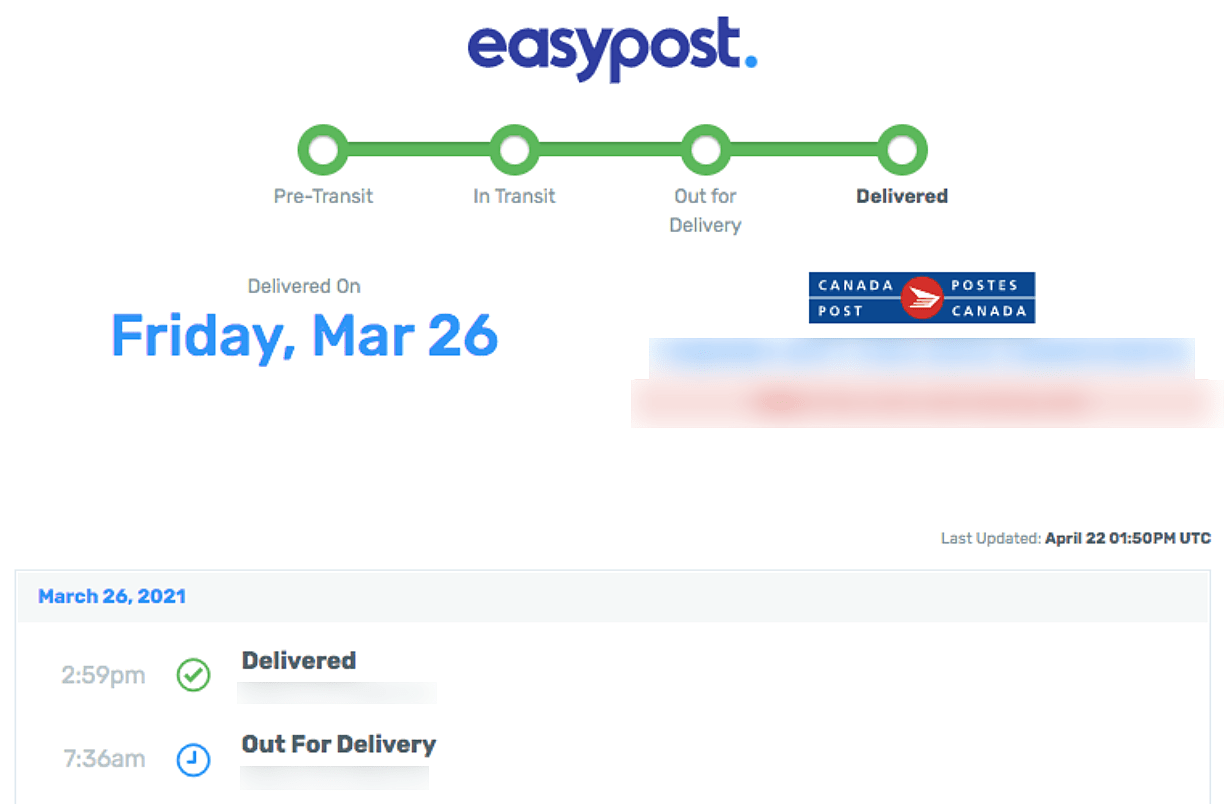
EasyPost then monitors the shipment and sends webhook events to your site as the package moves through the carrier network — picked up, in transit, out for delivery, delivered, exception, and so on.
Automatic Order Status Updates
The plugin listens for EasyPost tracking webhooks and updates your WooCommerce order status automatically. You can configure which tracking events trigger which order status changes:
- Label created → move order to “Shipped”
- In transit → add order note with tracking update
- Out for delivery → add order note
- Delivered → move order to “Completed”
- Exception / delivery failure → add flagged order note for manual review
Customer Tracking Emails
When a label is generated, the plugin can automatically email the customer their tracking number and a link to the carrier’s tracking page. The email uses your existing WooCommerce transactional email templates, so it matches your branding.
For each carrier, EasyPost provides a direct tracking URL. The plugin formats this into a customer-friendly link — e.g. “Track your USPS shipment →” — rather than a raw tracking number the customer has to paste somewhere.
Tracking Numbers on the Order Page
Every generated tracking number appears on the WooCommerce order screen (for you as the admin) and on the customer’s My Account → Orders page. Customers can click the tracking link directly from their account without needing to find the email.
Webhook Setup
For tracking webhooks to work, EasyPost needs to be able to send events to your site. The plugin provides your webhook URL in the settings — you paste this into your EasyPost dashboard under Webhooks. Once configured, tracking events flow automatically.
If your site is on a local development environment or behind a firewall, webhooks won’t be receivable — this is expected. Webhooks only work on publicly accessible production sites.
Tracking Without Webhooks
If webhooks aren’t an option, the plugin can poll EasyPost for tracking updates on a schedule using WordPress cron. This is less real-time than webhooks but still gives you automated status updates — just with a delay of up to your configured polling interval.
Need help configuring tracking? Visit the ThePluginForge support page.
Download TheForge EasyPost Shipping free →
Carrier shipping rates are calculated based on the size and weight of the package you’re sending. If your WooCommerce store sends rate requests with inaccurate package dimensions, you’ll either overcharge customers (and lose sales) or undercharge (and eat the difference). The solution is accurate packing calculation — and that’s what 3D bin packing does.
What Is 3D Bin Packing?
3D bin packing is an algorithm that determines how a set of items can be arranged inside one or more boxes, given each item’s dimensions and each box’s dimensions. It considers not just whether items fit, but finds the smallest valid combination of boxes.
The TheForge EasyPost Shipping plugin runs this algorithm for every cart — testing every combination of item orientations (rotating items to try all six faces) and every combination of available boxes — to find the configuration that uses the smallest total box volume.
Why It Matters for Shipping Rates
Carriers charge based on whichever is greater: actual weight or dimensional weight. Dimensional weight is calculated as (length × width × height) / divisor. If you tell the carrier your box is 24″ × 24″ × 24″ when it’s actually 12″ × 12″ × 8″, you’ll be quoted a much higher rate.
Accurate packing calculation means:
- More accurate rate quotes at checkout
- No surprise carrier invoices for dimensional weight overages
- Fewer wasted boxes (smaller packaging = lower material costs)
- Potentially lower actual shipping costs from better box selection
Setting Up Your Box Sizes
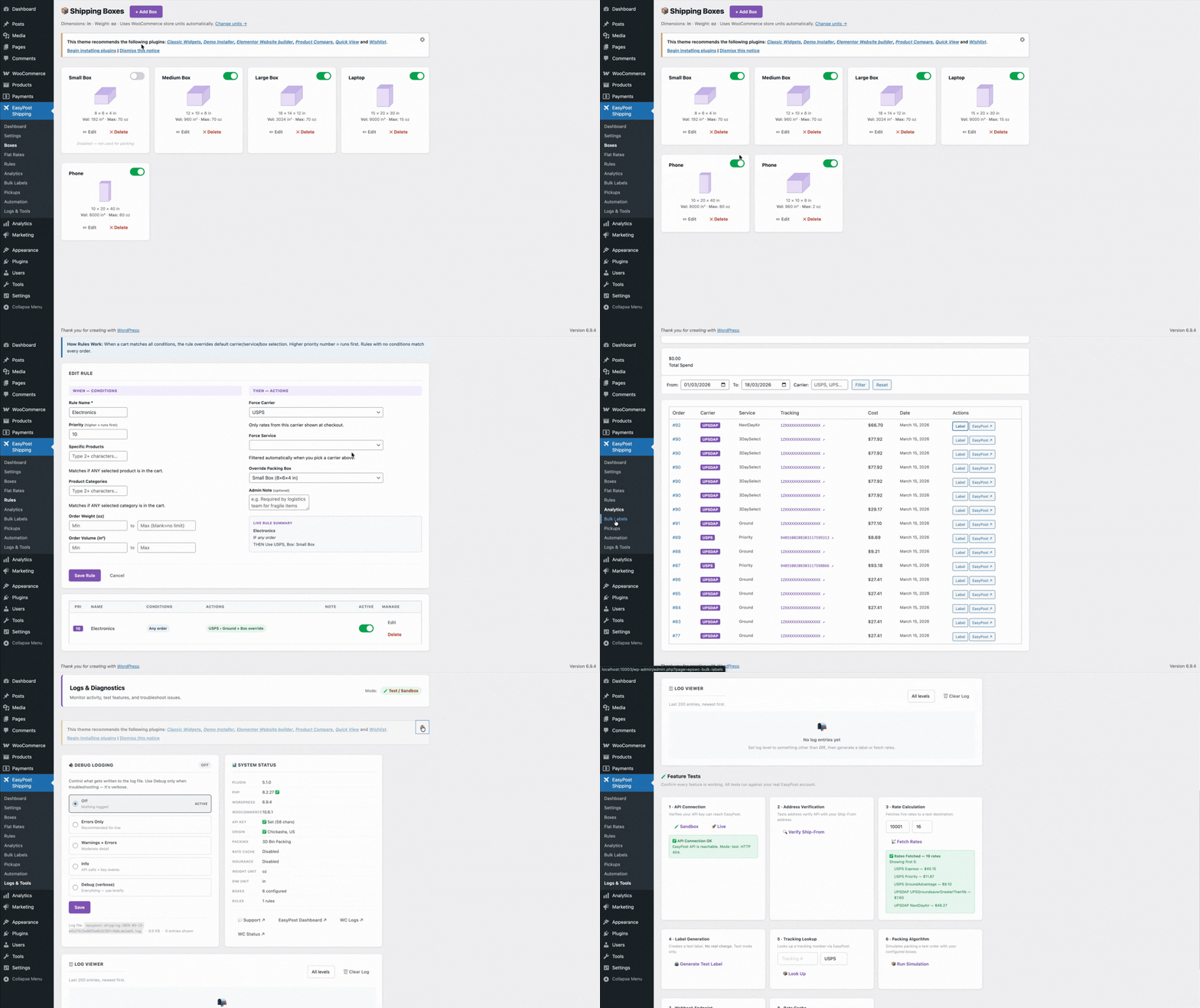
Go to WooCommerce → Settings → Shipping → EasyPost → Packing and add the box sizes you actually use in your warehouse. For each box, enter:
- Box name (for your reference)
- Outer dimensions (length × width × height)
- Inner dimensions (what items can actually fit inside)
- Box weight (the weight of the empty box, added to the shipment weight)
- Max weight (how much the box can safely hold)
Add all the box sizes you use. The more accurately your box inventory is configured, the more accurate your rates will be.
Product Dimensions and Weight
For the packing algorithm to work, every product in your WooCommerce store needs weight and dimensions set. These are standard WooCommerce fields on the product → Shipping tab. If a product has no dimensions set, the plugin falls back to a configurable default — but it’s much better to set them correctly at the product level.
Multi-Box Shipments
When an order’s items don’t fit in a single box, the algorithm splits the shipment into multiple boxes and rates them as a multi-piece shipment. EasyPost handles multi-piece shipments natively, so the rate you get back is accurate for the actual number of boxes you’ll be shipping.
Overriding the Packing Algorithm
Some products should always ship in their own box — fragile items, products with awkward shapes, or anything that can’t be combined with other products for safety or quality reasons. You can mark individual products as “always ship in own box” and the packing engine will exclude them from combination packing.
Questions about packing configuration? The ThePluginForge support page has documentation and a help desk.
Get TheForge EasyPost Shipping free →
Flat-rate shipping is a guess. Sometimes you guess too high and lose the sale. Sometimes you guess too low and eat the difference. Live carrier rates remove the guesswork entirely — your customer pays exactly what shipping actually costs, and you charge exactly that amount.
Here’s a complete look at how live rates work in the TheForge EasyPost Shipping plugin.

The Rate Fetching Flow
When a customer enters their shipping address at checkout, the plugin sends a rate request to the EasyPost API. That request includes:
- The customer’s destination address (street, city, state/county, postcode, country)
- Your store’s origin address
- Package weight and dimensions (calculated using the 3D bin packing engine)
- Which carriers and services you’ve enabled in the plugin settings
EasyPost returns rates from every connected carrier and service in typically under a second. The plugin filters the response to show only the services you’ve enabled, then displays them to the customer.
Which Carriers Are Supported?
EasyPost connects to over 100 carriers globally. For most WooCommerce stores, the relevant ones are:
- USPS — Priority Mail, Priority Mail Express, First Class, Media Mail, Parcel Select
- UPS — Ground, 2nd Day Air, Next Day Air, Worldwide Expedited
- FedEx — Ground, Express, Overnight, International
- DHL — Express, Paket, eCommerce
- Regional carriers (vary by country)
You connect your own carrier accounts to EasyPost, so the rates you receive are your negotiated rates, not retail rates.
Enabling and Ordering Services
Not every carrier service makes sense for every store. A craft shop doesn’t need UPS Next Day Air. An electronics retailer might need it. The plugin’s carrier management panel lets you enable exactly the services you want to offer, drag them into your preferred display order, and add handling fees or discounts per service.
Rate Caching
Making a live API call for every keypress in the address field would be slow and expensive. The plugin caches rates intelligently: once rates have been fetched for a given address and basket combination, they’re cached for a configurable period. Return visitors or customers who refine their address see instant results without another API call.
Delivery Estimates
EasyPost returns estimated delivery days alongside each rate. The plugin can display these next to the rate label. You control the format: “Estimated delivery: {days} business days”, “— arrives in {days} days”, or any custom string with the {days} placeholder.
Free Shipping Threshold
You can configure a free shipping threshold directly in the plugin settings. Orders above a certain value get free shipping — the plugin adds a “Free Shipping” option to the rates list and can optionally hide the paid options when the threshold is met.
Troubleshooting: No Rates Appearing
If no rates appear at checkout, the most common causes are:
- Missing package dimensions — products need weight and dimensions set in WooCommerce
- No carrier accounts connected in your EasyPost dashboard
- No services enabled in the plugin’s carrier management panel
- Address too incomplete for EasyPost to rate — the customer needs to enter at least a postcode
Full documentation and troubleshooting help is available at the ThePluginForge support page.
Download TheForge EasyPost Shipping free →
If you’re fulfilling more than a handful of orders a day, printing shipping labels one at a time is one of the biggest drains on your operational time. Open order, create shipment, select service, generate label, download PDF, print — then repeat for every single order. At 50 orders a day, that process takes most of your morning.
The TheForge EasyPost Shipping & Bulk Label Printing plugin was built specifically to solve this. Here’s a complete look at how the labels panel works and how to get the most out of it.
The Labels Panel: What It Is
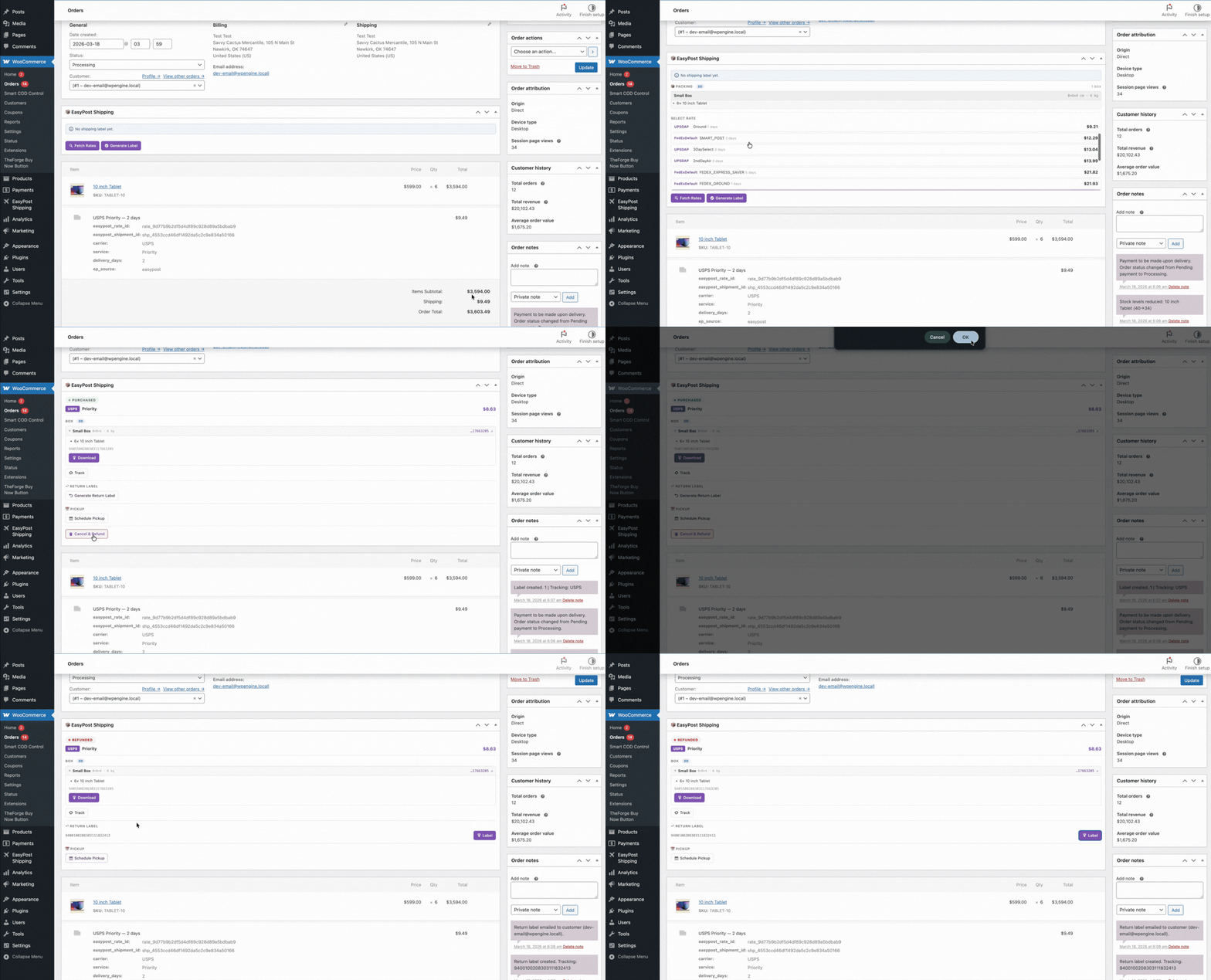
The labels panel lives directly inside the WooCommerce orders screen. You don’t need to visit a separate dashboard or log into a carrier portal. Every order you have in WooCommerce is accessible from the same interface you already use to manage your store.
From the labels panel you can:
- Generate a label for any individual order in one click
- Select multiple orders and generate all their labels at once
- Download all generated labels as a single merged PDF
- Void labels you no longer need
- Track shipment status without leaving WordPress
How Bulk Label Generation Works
Select your orders using the standard WooCommerce order checkboxes, then choose Generate Labels from the bulk actions dropdown. The plugin sends each order’s details to EasyPost — customer address, package dimensions, selected carrier service — and receives a label back for each one.
The plugin uses the shipping service the customer chose at checkout wherever possible. If no carrier was selected (for example, on orders placed before the plugin was installed), you can configure a default fallback carrier and service for bulk generation.
Merging Labels into a Single PDF
Once labels are generated, click Print All Labels. The plugin fetches every generated label and merges them into a single PDF file — one download, one print job. If you’re using a thermal label printer (which you should be — they’re dramatically faster than laser or inkjet for shipping labels), the PDF is formatted to print one label per page.

Voiding Labels
Printed a label for an order that was then cancelled? No problem. Void the label directly from the order screen and EasyPost will request a refund from the carrier. Most carriers process voids within 24–48 hours.
Package Dimensions and Weight
For accurate labels, the plugin needs package dimensions and weight. You can set these at the product level (the plugin reads WooCommerce’s built-in weight and dimensions fields) or define custom boxes at a store level. The 3D bin packing engine figures out the best box combination automatically — you don’t have to calculate it manually.
Setting Up Your Default Carrier
Go to WooCommerce → Settings → Shipping → EasyPost to configure which carrier and service are used when generating labels without an explicit customer choice. You can set different defaults for domestic and international orders.
Carrier Account Credentials
The plugin connects to EasyPost using your EasyPost API key, which in turn connects to your carrier accounts. You’ll need an EasyPost account (free) and at least one connected carrier account. EasyPost supports USPS, UPS, FedEx, DHL, and dozens of regional carriers — connect the ones relevant to your business.
Tips for High-Volume Stores
- Sort orders by status before bulk-selecting — process “Processing” orders as a batch to avoid accidentally labelling “On Hold” orders
- Use a thermal label printer — laser labels work but thermal printers are faster and the consumables are cheaper
- Set up automatic order status updates — the plugin can move orders to “Shipped” automatically once a label is generated
- Schedule your fulfilment run — generate all your labels at the same time each day, just before your carrier pickup window
Need help setting up the labels panel? Visit the ThePluginForge support page for documentation and assistance.
Download TheForge EasyPost Shipping free →
The average WooCommerce cart abandonment rate is around 70%. That means seven out of ten people who add something to their cart never pay. Most of those losses happen at or before checkout. Here are five things you can do about it.
1. Skip the Cart with a Buy Now Button
The most direct fix: remove the cart entirely for customers who are ready to buy. The TheForge Buy Now Button adds a straight-to-checkout button on product pages. Fewer steps, fewer drop-offs.
2. Reduce Checkout Fields
Most WooCommerce stores ask for far more information than they need to ship a package. Remove unnecessary fields, make address line 2 optional, and auto-complete addresses where possible.
3. Offer the Right Payment Methods
In cash-heavy markets, not offering COD kills conversion. But offering COD without controls invites fraud. The Smart COD Control plugin lets you offer COD intelligently — available to genuine customers, blocked or fee-gated for risky ones.
4. Show Real Shipping Costs Upfront
Surprise shipping costs at checkout are the number one stated reason for cart abandonment. Live carrier rates via the EasyPost Shipping plugin mean customers see accurate costs before they start the checkout flow.
5. Validate Addresses Before Payment
Nothing kills the checkout experience like a payment failing because of an address error. Real-time address validation catches problems before the customer hits the pay button.
All three TheForge plugins — EasyPost Shipping, Smart COD Control and Buy Now Button — are free and built specifically for WooCommerce stores that take performance seriously.
Every extra step between a customer deciding to buy and actually paying is an opportunity for them to change their mind. The cart page is one of the biggest drop-off points in any WooCommerce store. A Buy Now button removes it entirely.
What the Buy Now Button Does
The TheForge Buy Now Button plugin adds a customisable button to any WooCommerce product that skips the cart and sends the customer directly to checkout. One click, straight to payment.
Works on All Product Types
Simple products, variable products, grouped products — the Buy Now button handles them all. For variable products, it waits until the customer has selected their options, then takes them straight to checkout with the right variation already in the basket.
Customise Everything
Change the button text, colour, size and position without touching CSS. Put it above or below the standard Add to Cart button, or replace the Add to Cart entirely for specific products or categories.
Single Product Checkout
The plugin clears the cart before adding the product, so customers check out with just that one item — ideal for stores selling individual high-value products or subscriptions.
Works with Any Theme
No page builder required, no shortcode gymnastics. The button drops into your product pages automatically and inherits your theme’s button styles, or you can override them completely.
Download Buy Now Button free →
A customer places a COD order with a fake phone number. Your courier drives to the address — nobody home, nobody ordered anything. You pay for the return shipment. It happens hundreds of times a day across WooCommerce stores worldwide. OTP verification stops it cold.
How COD OTP Verification Works
When a customer chooses Cash on Delivery at checkout, Smart COD Control sends a one-time password to the phone number they’ve entered. They must enter the correct OTP before the order is placed. If the number is fake, no OTP arrives, and the order never goes through.
The Impact on RTO Rates
Stores using OTP verification consistently report 40–60% reductions in return-to-origin rates within weeks of enabling it. The friction is minimal for genuine customers and a hard wall for fraudulent ones.
SMS Gateway Integration
Smart COD Control integrates with popular SMS gateways so OTPs are delivered quickly and reliably. Configure your gateway credentials once and the plugin handles everything automatically.
Resend & Expiry Controls
Set OTP expiry time, allow resends with a cooldown period, and limit the number of attempts before a session is blocked. Complete control over the verification flow without touching any code.
Zero Impact on Legitimate Customers
For real customers, OTP verification adds five seconds to the checkout process. They get an SMS, they type a code. That’s it. The orders that drop off aren’t customers you wanted anyway.
Download Smart COD Control free →
Every COD order is a risk. Every prepaid order is guaranteed revenue. The goal isn’t to eliminate COD — in many markets you’d kill your conversion rate — but to shift the balance in your favour without alienating customers.
Prepaid Discounts
One of the most effective techniques: offer a small discount on prepaid orders. The Smart COD Control plugin pairs naturally with this strategy — tighten COD eligibility rules while making prepaid more attractive.
COD Fees as a Nudge
Add a visible handling fee to COD orders. When a customer sees “Cash on Delivery + ₹40 handling fee” vs “Pay online — free”, many will choose prepaid. The fee doesn’t have to be large to be effective.
Customer Trust Scoring
New customers with no order history are higher risk. Smart COD Control lets you restrict COD to customers who have already placed and received at least one prepaid order — building trust before extending COD eligibility.
Category and Product Rules
Some products are higher risk than others. Block COD on fragile items, high-value electronics, or custom/personalised products where returns are especially costly.
Transparent Reporting
Track your COD vs prepaid split, RTO rates and blocked order counts directly in WooCommerce. The data helps you tune your rules over time.