Every WooCommerce checkout starts with a cart. But for stores where customers typically buy one product at a time — or where you’re driving traffic from ads or emails to a specific product — the cart is dead weight. It’s a detour between intent and purchase.
The TheForge Buy Now Button plugin replaces that detour with a direct route.
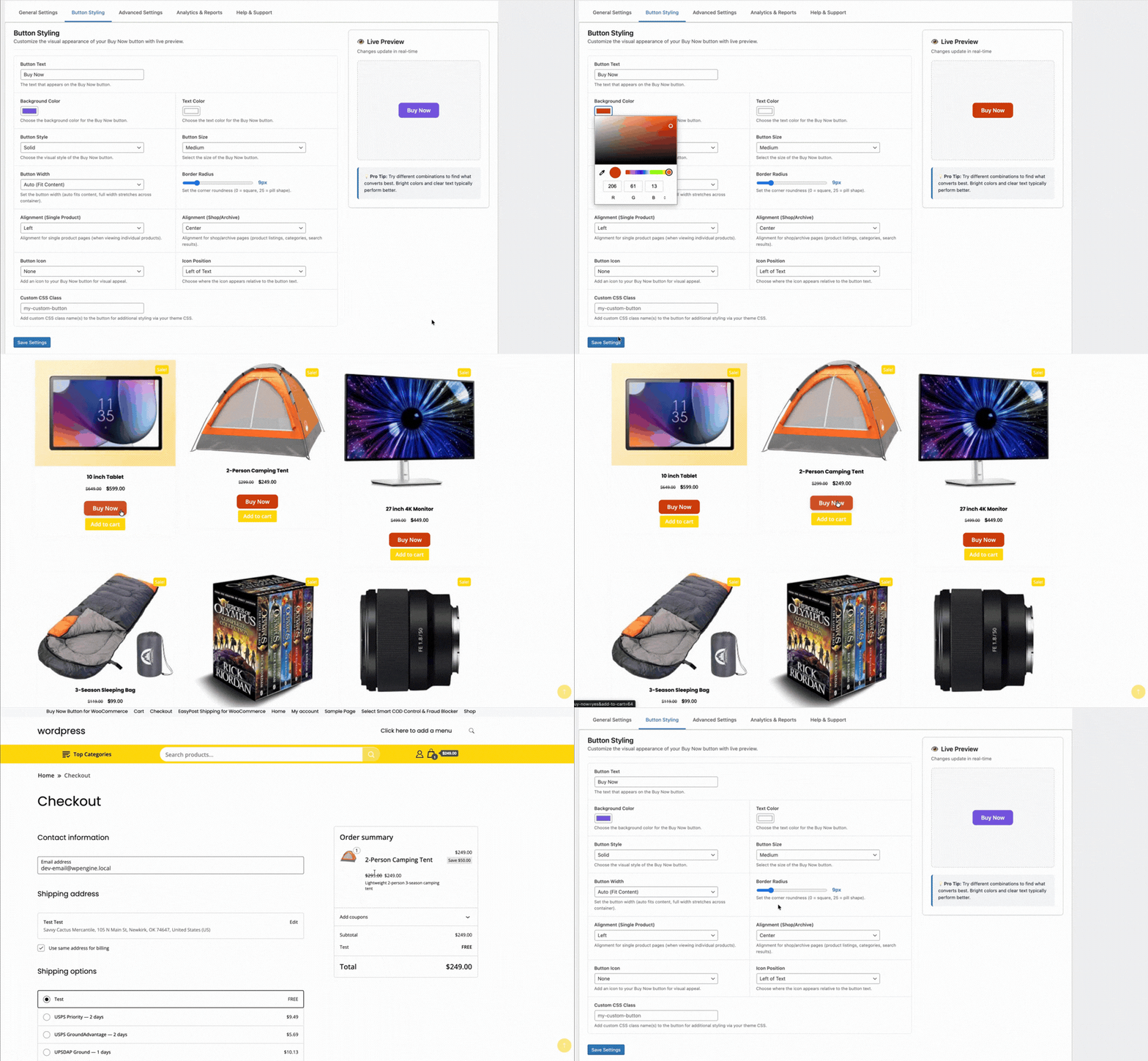
The Standard WooCommerce Checkout Flow
Without a Buy Now button, the customer journey is:
- Product page → click Add to Cart
- Cart icon updates → customer navigates to cart
- Cart page → review items → click Proceed to Checkout
- Checkout page → enter details → pay
Steps 2 and 3 are pure friction. The cart page asks the customer to confirm a decision they’ve already made. Every additional page is an exit opportunity.
The Buy Now Flow
- Product page → click Buy Now
- Checkout page → enter details → pay
Two fewer steps. Two fewer exit opportunities. Studies on ecommerce checkout optimisation consistently show that reducing steps increases conversion, particularly on mobile where multi-step navigation is especially cumbersome.
Single Item Checkout: Clearing the Cart
The Buy Now Button plugin has a Clear Cart option. When enabled, clicking Buy Now removes any existing items from the cart before adding the current product. The customer checks out with just that one item.
This is particularly valuable for:
- Landing page traffic — visitors coming from ads who have a specific purchase intent
- Email campaigns — links to a specific product with a direct Buy Now call to action
- Single-product stores — where you sell one main product and want the simplest possible checkout
- Subscription products — where you need to ensure only the subscription is in the cart
Multi-Item Buy Now
If you don’t enable Clear Cart, Buy Now adds the product to the existing cart and redirects to checkout. The customer can still have multiple items — they just skip the cart page review. This is a good middle ground for stores where cross-selling and upselling are important.
The Mobile Argument
Mobile commerce accounts for the majority of WooCommerce traffic in most markets. Mobile users have less patience for multi-step processes and less precise input (fat fingers on small screens). A direct Buy Now → Checkout flow is significantly better on mobile than the standard cart flow.
Questions about configuring the single product checkout flow? Visit the ThePluginForge support page.
Download Buy Now Button free →
A Buy Now button that blends into your product page or looks out of place with your theme won’t convert. The TheForge Buy Now Button plugin gives you complete control over the button’s appearance and placement — without touching CSS or your theme’s code.
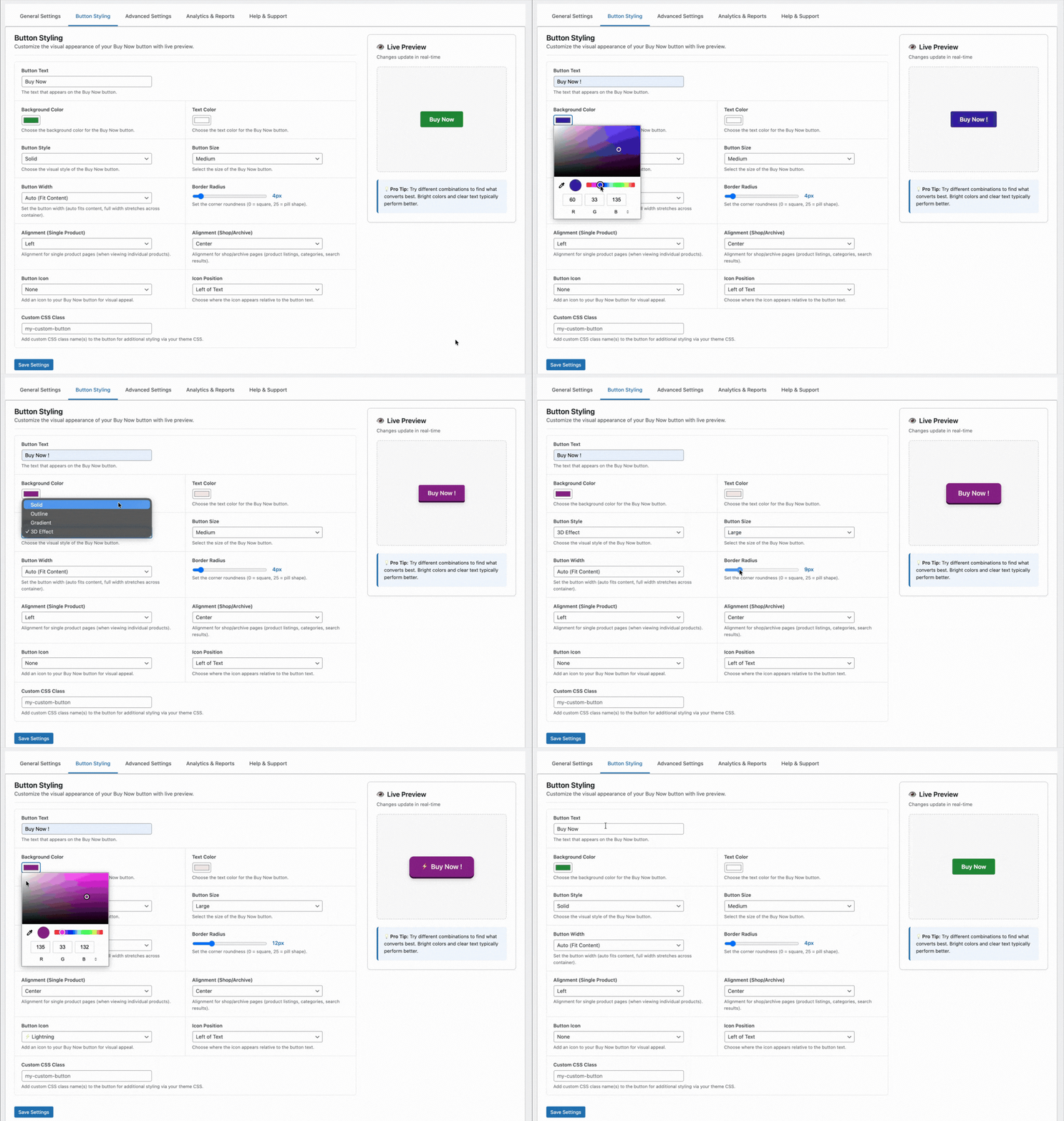
Button Text
The default text is “Buy Now” — but you can change it to anything. Popular alternatives:
- “Get It Now”
- “Order Now”
- “Buy Directly”
- “Skip the Cart”
- “Checkout Now”
You can also set different text for different product types or pages if needed.
Button Colour
Set the background colour, text colour, and hover state colour for the button. The plugin provides a colour picker in the settings panel — no need to enter hex codes manually. The border colour and border radius are also configurable.
For best results, use a colour that creates contrast with your Add to Cart button. If your Add to Cart is your theme’s primary colour, use a complementary accent colour for Buy Now so customers can clearly distinguish the two actions.
Button Size
Choose from preset sizes (small, medium, large) or enter a custom font size and padding. The button width defaults to match your Add to Cart button but can be set to full-width or a fixed pixel/percentage width.
Button Position
Configure where the Buy Now button appears relative to the Add to Cart button:
- Before Add to Cart — Buy Now is the first and most prominent action
- After Add to Cart — Add to Cart is primary, Buy Now is secondary
- Replace Add to Cart — only the Buy Now button is shown (recommended for landing pages and single-product stores)
You can set different positions for different product types or categories.
Icon Support
Add an icon before or after the button text. The plugin supports dashicons and common unicode characters — a shopping bag emoji, a lightning bolt, a right arrow — anything that reinforces the speed and directness of the action.
Responsive Behaviour
The button adapts to mobile automatically. On small screens where space is at a premium, you can set a different position or size specifically for mobile — for example, full-width on mobile and fixed-width on desktop.
Per-Product Overrides
Global settings apply to all products, but you can override any setting at the individual product level. The product edit screen has a Buy Now Button tab where you can customise text, colour, and position for that specific product.
Full styling documentation at the ThePluginForge support page.
Download Buy Now Button free →
Variable products are one of the most common product types in WooCommerce — products that come in multiple variants like size, colour, or material. Adding a Buy Now button to a variable product requires handling the variation selection before sending the customer to checkout. Here’s how the TheForge Buy Now Button plugin handles it.
The Challenge with Variable Products
A simple product has one SKU, one price, one stock status. Click Buy Now → add to cart → go to checkout. Straightforward.
A variable product — a t-shirt in five colours and four sizes, for example — has up to 20 variations. The Buy Now button can’t send the customer to checkout until they’ve chosen which variation they want. If you skip that step, the wrong variation ends up in the cart (or no variation at all).
How the Plugin Handles It
The Buy Now Button plugin integrates with WooCommerce’s native variation attribute selectors. The Buy Now button is inactive (greyed out) until the customer has selected all required attributes. Once a complete variation is selected — a specific size AND colour, for example — the button activates.
Click the active button, and the plugin adds exactly that variation to the cart and redirects to checkout. The customer sees their chosen variation pre-selected on the checkout page.
Swatch Compatibility
Many WooCommerce themes and plugins replace the default dropdown attribute selectors with visual swatches. The Buy Now Button plugin is compatible with the major swatch plugins, detecting variation selection events regardless of whether the selector is a dropdown, button swatch, colour swatch, or image swatch.
Out of Stock Variations
If the selected variation is out of stock, the Buy Now button shows as unavailable — the same way the standard Add to Cart button behaves. The customer can select a different in-stock variation to re-enable it.
Displaying the Button Position on Variable Products
On variable products, position matters. The button needs to appear after the attribute selectors so customers can clearly see the flow: choose your options → click Buy Now. You can configure the button position in the plugin settings — below the variation selector is usually the most natural placement.

Variable Products in Grouped Products
Grouped products — sets of related products purchased together — have a different structure. The Buy Now Button plugin handles grouped products by adding all selected quantities of each product in the group to the cart simultaneously before redirecting to checkout.
For questions about variable product setup, visit the ThePluginForge support page.
Download Buy Now Button free →
Some products are inherently higher risk for Cash on Delivery returns. Fragile items that might arrive damaged. High-value electronics where the financial exposure on an RTO is significant. Customised or personalised products that can’t be restocked if returned. For these, blocking COD at the product or category level is the right approach.
Why Product-Level COD Rules?
Your store might be perfectly happy offering COD on most products — it drives conversion and serves customers in cash-heavy markets. But a blanket “COD allowed” policy that applies equally to a ₹200 accessory and a ₹15,000 laptop makes no sense from a risk perspective.
Smart COD Control lets you apply COD rules at the product and category level, so you can offer COD strategically rather than as an all-or-nothing proposition.
Setting Category-Level Rules
Go to WooCommerce → Smart COD → Product Rules → Categories. Select any product category and choose whether COD is:
- Allowed (default)
- Blocked — COD not available if the cart contains any product in this category
- Restricted — COD requires OTP verification or additional trust criteria when products from this category are in the cart
Setting Product-Level Rules
For individual products, the rule appears on the product edit screen under a new Smart COD tab. Override the category rule for specific products where needed — for example, allow COD on most electronics but block it for one particularly high-value item.
Mixed Cart Handling
When a cart contains products from multiple categories with different COD rules, Smart COD Control applies the most restrictive rule. If any product in the cart has COD blocked, COD is blocked for the entire order.
Practical Examples
- Electronics — block COD for items over ₹5,000, allow with OTP for items under ₹5,000
- Custom/personalised products — block COD entirely (can’t restock a personalised item)
- Fragile items — allow COD only after OTP verification
- Perishable goods — block COD (RTO means wasted product)
- Software/digital downloads — block COD (delivery is immediate, no physical return possible)
For help configuring product-level rules, visit the ThePluginForge support page.
Download Smart COD Control free →
Smart COD Control is a comprehensive toolkit for managing Cash on Delivery in WooCommerce. This guide walks you through every major setting from first install to a fully configured COD management system.
Installation
Install Smart COD Control from the WordPress plugin directory or upload the plugin ZIP. Activate it, then navigate to WooCommerce → Smart COD in your admin menu.
1. General Settings
The General tab controls the top-level COD behaviour:
- Enable/disable COD — master switch for all Smart COD Control rules
- COD label — what the payment method is called at checkout (“Cash on Delivery”, “Pay on Delivery”, etc.)
- COD description — supporting text shown at checkout
- Minimum order amount — COD not available below this value
- Maximum order amount — COD blocked above this value
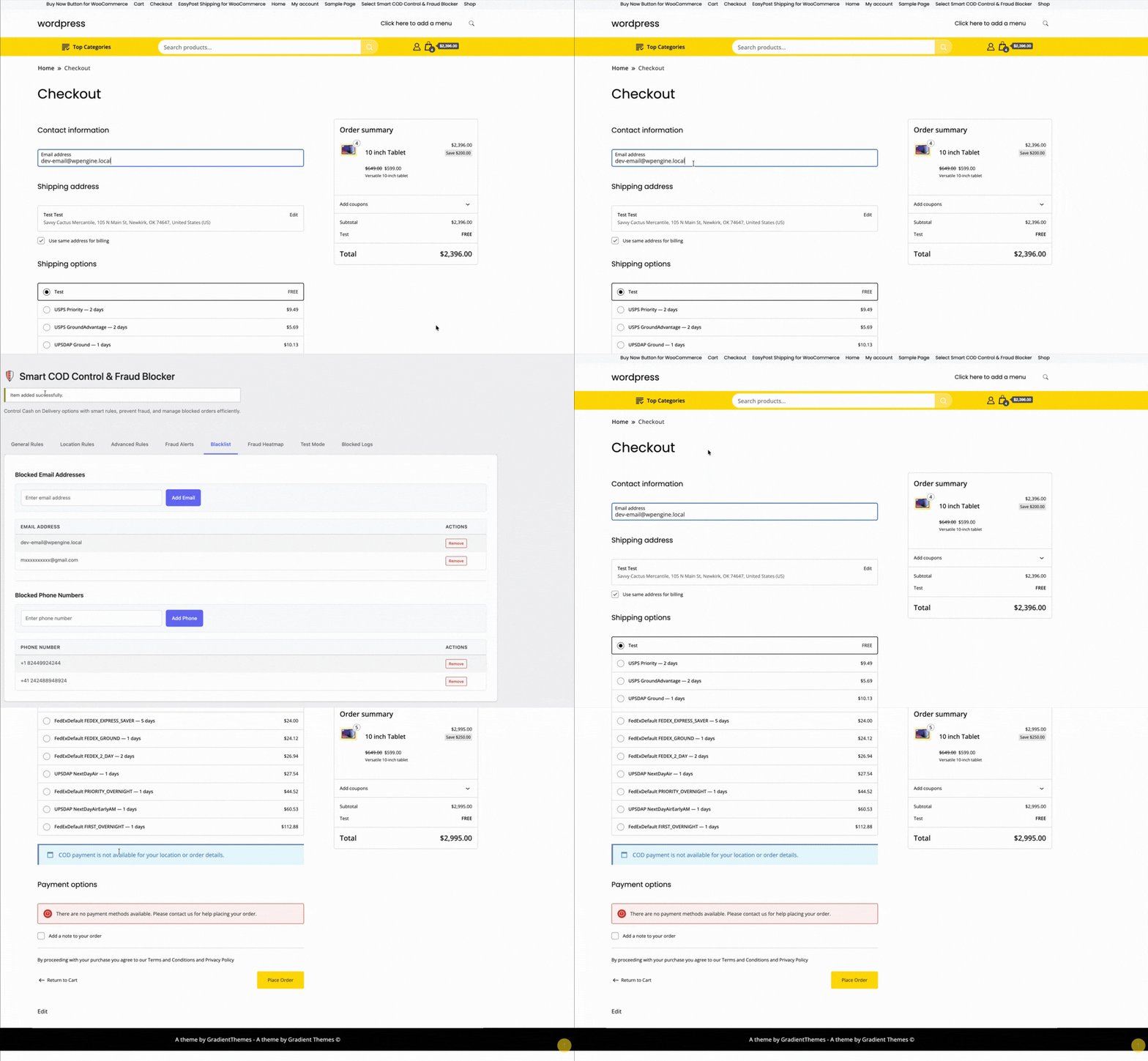
2. OTP Verification
Configure SMS gateway, OTP length, expiry, resend limits, and the message template. Test with a real phone number before enabling.
3. Location Rules
Set country, state, and pincode allowlists or blocklists. Start permissive and tighten based on your RTO data.

4. Fee Settings
Set a fixed, percentage, or combined COD fee. Configure the label text and any exemption rules (by customer history, order value, or product category).
5. Trust Rules
Define what constitutes a “trusted” customer. Trusted customers can receive lighter restrictions — skipping OTP, lower fees, higher COD value caps.

6. Product and Category Rules
Block COD for specific products or entire categories. High-value electronics, fragile goods, custom/personalised items — configure which products can and can’t be purchased via COD.
7. Analytics and Reporting
The analytics tab shows your COD vs prepaid order split, blocked order counts, and RTO trends over time. Use this data to tune your rules.

Recommended Starting Configuration
If you’re not sure where to start:
- Enable OTP verification for all new customers
- Set a maximum COD order value of 2× your average order value
- Add a modest COD handling fee (₹25–₹50 or 2–3%)
- Review your RTO data after 30 days and add pincode blocks for problem areas
Full documentation and a setup walkthrough video are available at the ThePluginForge support page.
Download Smart COD Control free →
A first-time customer with no order history placing a large COD order is a fundamentally different risk profile from a customer who has placed and received 10 prepaid orders over the past year. Treating both customers identically — either blocking COD for everyone or allowing it for everyone — is leaving money on the table or accepting unnecessary risk.
Customer trust scoring in Smart COD Control lets you differentiate.
What Is Customer Trust Scoring?
Trust scoring assigns a risk level to each customer based on their order history with your store. Customers with a track record of successfully received orders are “trusted” and get more permissive COD access. New customers or those with a history of returns or cancellations are flagged as higher risk and face additional restrictions.
Configuring Trust Rules
In WooCommerce → Smart COD → Trust Rules, you define what “trusted” means for your store. Examples:
- Minimum completed orders — customer must have at least N completed orders
- Minimum prepaid orders — at least N of those orders must have been prepaid (not COD)
- Account age — account must be at least N days old
- No recent RTO — no returned COD orders in the last N months
You can require all conditions or any combination.
What Happens to Untrusted Customers?
You control this. Options include:
- Block COD entirely for new/untrusted customers
- Require OTP verification for untrusted customers but skip it for trusted ones
- Apply the COD handling fee to untrusted customers only
- Limit the COD order value cap for untrusted customers
This approach minimises friction for your best customers while maintaining protection where it’s needed.
Guest Checkout and Trust Scoring
Guest checkouts don’t have an account history. You can configure how guest COD orders are treated — some stores block COD for guests entirely and require account creation, others allow it with mandatory OTP verification.
Building Trust Over Time
Trust scoring creates a virtuous cycle: new customers who want COD complete OTP verification and receive their first order. After N successful orders, they’re trusted and get smoother COD access. This rewards genuine customers progressively without permanent blanket restrictions.
Documentation for trust scoring configuration is available at the ThePluginForge support page.
Download Smart COD Control free →
Every Cash on Delivery order carries a cost that prepaid orders don’t: the risk of a return shipment, the cost of the carrier’s COD collection fee (where applicable), and the operational overhead of handling a cash payment. A COD handling fee makes that cost visible to the customer — and nudges them toward prepaid alternatives.
The Psychology of COD Fees
When a customer sees “Cash on Delivery + ₹40 handling fee” next to “Pay Online — Free,” the comparison is clear. A small fee doesn’t need to cover your actual COD cost — it just needs to make the prepaid option look more attractive. Many stores report a 15–25% shift toward prepaid payment after adding a modest COD fee.
Setting Up the Fee in Smart COD Control
Go to WooCommerce → Smart COD → Fee Settings. You can configure the fee as:
- Fixed amount — e.g. ₹40 or $2.00 regardless of order value
- Percentage of order total — e.g. 2% of the cart value
- Combined — a fixed base plus a percentage component
The fee label shown to the customer is fully customisable. “COD Handling Fee”, “Cash Payment Surcharge”, or a more neutral “Service Fee” — whatever fits your store’s tone.
Fee Exemptions
Smart COD Control lets you configure fee exemptions. You might waive the COD fee for:
- Customers with a positive order history (rewarding loyalty)
- Orders above a certain value (high-value COD customers are often lower risk)
- Specific product categories (where COD is a strategic requirement)
- Specific geographic areas (where prepaid infrastructure is limited)
Minimum and Maximum Order Value for COD
Alongside the fee, you can set a minimum and maximum order value for COD eligibility. Small orders (under ₹500) might not warrant the overhead. Very large orders (over ₹10,000) carry enough RTO risk that you’d prefer to require prepayment or additional verification.
Tax Treatment of the Fee
The COD fee can be configured as taxable or tax-exempt. In most jurisdictions, a payment processing surcharge is not subject to GST/VAT — check your local tax rules and configure accordingly.
Testing the Fee
Before going live, place a test order using COD and verify the fee appears correctly on the order review, order confirmation email, and the WooCommerce order record.
Full setup documentation is available at the ThePluginForge support page.
Download Smart COD Control free →
If you’ve been running a WooCommerce store with Cash on Delivery for any length of time, you’ll have noticed patterns. Certain cities, certain postcodes, certain pin codes — they produce a disproportionate share of your Returns to Origin. Geographic blocking lets you take action on that data.
Why Block COD by Location?
Not all locations are equal for COD reliability. Factors that increase RTO rates in specific areas include:
- Lower delivery success rates from carrier partners in that region
- Higher incidence of impulsive or speculative ordering behaviours
- Areas where your carrier has historically struggled with last-mile delivery
- Regions with a high proportion of first-time online shoppers
Smart COD Control lets you block COD for any combination of countries, states, and specific pincodes/postcodes.
Setting Up Geographic Restrictions
Navigate to WooCommerce → Smart COD → Location Rules. You have several levels of control:
Country-Level Blocking
Block COD entirely for specific countries. Useful if you ship internationally and COD fraud is disproportionately high from certain countries.
State/Region-Level Blocking
Block COD for entire states or regions within a country. Less blunt than country-level blocking but still broad.
Pincode/Postcode Blocking
The most targeted option. Paste in a list of pincodes (comma-separated or one per line) and COD is blocked for orders destined for those locations. The customer sees COD listed but greyed out with a message like “Cash on Delivery is not available for your location.”
Building Your Blocklist
Start with your return data. Export your WooCommerce orders, filter for COD returns, and extract the postcodes. Sort by RTO rate. Any postcode with an RTO rate above your acceptable threshold (typically 20–30%) is a candidate for blocking.
Revisit and update your blocklist quarterly — RTO patterns shift as your customer base, carrier partnerships, and product mix evolve.
Allowlist Mode
Instead of blocking specific locations, you can switch Smart COD Control to allowlist mode — COD is disabled everywhere by default, and only explicitly allowed for specific pincodes. This is useful for stores that want to offer COD as a targeted feature for verified-delivery areas only.
Combining with Other Rules
Geographic rules stack with other Smart COD Control rules. You might allow COD in a problematic postcode only for customers with an order history — blocking new customers while allowing verified repeat buyers.
Need help building your location rule strategy? Visit the ThePluginForge support page.
Download Smart COD Control free →
OTP (One-Time Password) verification for Cash on Delivery is the most effective single technique for reducing fake WooCommerce orders. It adds five seconds of friction for legitimate customers and stops fraudulent orders cold. Here’s exactly how to set it up with Smart COD Control.
How OTP Verification Works
When a customer selects Cash on Delivery at checkout and clicks Place Order, Smart COD Control intercepts the order placement and sends a one-time password to the phone number the customer entered. The customer must enter the correct OTP on a verification screen before the order is confirmed. If the phone number is fake, no OTP arrives and the order never completes.
Step 1: Connect an SMS Gateway
Smart COD Control integrates with popular SMS gateways to deliver OTP messages. Supported gateways include Twilio, MSG91, Textlocal, and others. In the plugin settings (WooCommerce → Smart COD → OTP Settings), select your gateway and enter your API credentials.
If you’re not sure which gateway to use:
- Twilio — global coverage, easy setup, reliable
- MSG91 — popular for India and South Asia, competitive rates
- Textlocal — good UK coverage
Step 2: Configure OTP Settings
Once your gateway is connected, configure the OTP behaviour:
- OTP length — 4 or 6 digits (6 is more secure)
- OTP expiry — how long the OTP is valid (5–15 minutes is typical)
- Resend limit — how many times a customer can request a new OTP per session
- Resend cooldown — minimum time between resend requests (prevents OTP flooding)
- Max attempts — how many incorrect entries before the session is blocked
Step 3: Customise the OTP Message
The SMS message template is fully customisable. The default is something like: “Your ThePluginForge store verification code is {otp}. Valid for 10 minutes.” You can change this to match your store brand and include your store name.
Step 4: Test Before Going Live
Use a real phone number you own to test the full OTP flow before enabling it for customers. Place a test COD order, verify you receive the OTP, enter it correctly, and confirm the order completes. Also test the “wrong OTP” and “expired OTP” error states.
What Customers See
After clicking Place Order, the customer is shown a clean verification screen asking them to enter the OTP sent to their phone number. The screen displays the last few digits of the number for confirmation, a resend option (after the cooldown), and a countdown timer showing when the OTP expires.
Exempting Repeat Customers
You can configure Smart COD Control to skip OTP verification for customers with a positive order history — for example, customers who have previously placed and received at least one paid order. This reduces friction for loyal customers while maintaining protection for new and high-risk orders.
Full documentation and gateway setup guides are available at the ThePluginForge support page.
Download Smart COD Control free →
Shipping insurance is one of those things that feels optional until you need it. A high-value shipment gets lost, damaged, or stolen — and without insurance, you absorb the loss. EasyPost’s shipment insurance API makes it easy to protect orders directly from your WooCommerce dashboard.
How EasyPost Insurance Works
EasyPost offers its own insurance product (underwritten by a third-party insurer) that can be added to any shipment you create via the API. The premium is typically 1% of the declared value with a minimum of around $1 per shipment — significantly cheaper than carrier-provided insurance for most cases.
The TheForge EasyPost Shipping plugin integrates this directly into the label generation flow.
Adding Insurance to a Label
When generating a label from the WooCommerce order screen, you’ll see an Add Insurance option with a field for the declared value. Enter the item value, and the insurance premium is calculated and shown. Confirm, and the label is generated with insurance attached.
For bulk label generation, you can configure the plugin to automatically add insurance to any order above a configurable value threshold — so high-value orders are always protected without manual intervention.
Offering Insurance at Checkout
You can also offer shipment insurance as an optional add-on at checkout. The customer sees a checkbox — “Add shipment insurance for $X.XX” — and can choose whether to include it. The insurance cost is calculated based on the order total and the EasyPost rate.
This approach lets customers who want the peace of mind pay for it, while keeping checkout simple for customers who don’t.
Filing Claims
If an insured shipment is lost or damaged, you file a claim directly with EasyPost (not the carrier). EasyPost’s claims process is straightforward — you submit the claim with the shipment details and evidence of value, and EasyPost handles it from there.
When to Auto-Insure
A useful rule of thumb: auto-insure any shipment where the item value exceeds the cost of a reasonable self-insurance reserve. For most stores, that’s somewhere between $100–$500 depending on your shipping volume and loss history.
Questions? Visit the ThePluginForge support page.