Running a WooCommerce multi-carrier shipping setup gives your store a significant competitive advantage: customers get the best available rate at checkout, you are never locked into a single carrier’s pricing or availability, and your fulfillment operation becomes more resilient. This guide covers how to connect and manage multiple carriers inside WordPress without the usual technical headaches.
Why Multi-Carrier Shipping Is the Right Strategy
Relying on a single shipping carrier is a business risk most store owners underestimate until something goes wrong. Carrier rate increases, service disruptions, and regional coverage gaps can directly impact your costs and delivery times. Multi-carrier shipping addresses all of these risks simultaneously.
Beyond risk management, different carriers genuinely excel in different scenarios:
- USPS excels for lightweight packages, rural delivery, and last-mile coverage
- UPS is strong for heavy domestic shipments and business-to-business delivery
- FedEx leads in overnight and time-critical delivery
- DHL Express is typically the best choice for international shipments
A multi-carrier setup lets you route each shipment to the best carrier automatically, rather than forcing every order through one service.
The Challenge with Traditional Multi-Carrier Setups
The conventional approach to multi-carrier WooCommerce shipping requires a separate plugin for each carrier. Each plugin has its own settings, its own API keys, its own configuration screen, and its own quirks. Managing three or four carrier plugins simultaneously creates a maintenance burden and is a common source of conflicts in WordPress.
A better approach is to use a single plugin that abstracts all carriers behind one unified interface.
EasyPost for WooCommerce: One Plugin, 100+ Carriers
EasyPost for WooCommerce by ThePluginForge takes a fundamentally different approach to multi-carrier shipping. Instead of connecting to each carrier directly, it connects to the EasyPost API — a carrier aggregation platform that provides access to over 100 carriers through a single integration.
From inside your WordPress admin, you configure which carriers to display at checkout, set any carrier-specific preferences, and the plugin handles all API communication behind the scenes. Adding a new carrier is as simple as enabling it in the plugin settings — no new API keys, no new plugins, no developer required.
Carriers Available Through EasyPost
The full list includes over 100 carriers, but the most commonly used for WooCommerce stores include:
- USPS (including all service classes)
- UPS
- FedEx
- DHL Express
- DHL eCommerce
- Amazon Logistics
- OnTrac
- LaserShip
- Regional carriers for specialized coverage
Setting Up Multi-Carrier Shipping in WooCommerce
Step 1: Install EasyPost for WooCommerce
Download and activate the EasyPost plugin from ThePluginForge. Create a free EasyPost account at easypost.com if you do not have one.
Step 2: Connect Your EasyPost Account
Enter your EasyPost API key in the plugin settings under WooCommerce → Settings → Shipping → EasyPost. Use your production key for live orders.
Step 3: Add Your Carrier Accounts
In your EasyPost dashboard, connect your existing carrier accounts (UPS, FedEx, etc.) or use EasyPost’s default carrier accounts to access their pre-negotiated rates. Your connected accounts and their rates will automatically appear in the plugin.
Step 4: Configure Which Services to Display
In the plugin settings, choose which carrier services to show at checkout. You can include all available options or whitelist specific services — for example, only showing USPS Priority Mail and UPS Ground rather than every available service.
Step 5: Set Up Shipping Zones
Use WooCommerce’s native shipping zones to apply different carrier configurations for different geographic regions. For example, show domestic carriers for US addresses and DHL Express for international ones.
Carrier Selection Rules and Automation
Advanced stores can go further by setting up carrier selection rules that automatically recommend a specific carrier based on package weight, destination, or order value. The EasyPost for WooCommerce plugin supports service filtering logic to pre-select or highlight recommended options for customers.
Showing Only the Cheapest Option
Some stores prefer to hide carrier names and show only the lowest price available. The plugin supports this “lowest rate only” mode, where it queries all carriers and displays a single “Standard Shipping” option at the best available price.
Managing Multi-Carrier Shipping Analytics
With multiple carriers active, understanding your shipping cost distribution by carrier becomes valuable for negotiation and optimization. EasyPost’s dashboard provides this data, and ThePluginForge’s team can advise on how to use it to reduce your blended shipping cost per order.
Conclusion
WooCommerce multi-carrier shipping does not have to be complicated. With EasyPost for WooCommerce from ThePluginForge, you get access to over 100 carriers through a single plugin, configured in one place inside your WordPress admin. Your customers see the best available rates at checkout. Your fulfillment team works from one unified label printing interface. And your business is protected against the disruption of any single carrier.
Get started or ask questions at ThePluginForge support center.
Frequently Asked Questions
Do I need separate accounts with each carrier for multi-carrier shipping?
You can use EasyPost’s pre-negotiated rates without your own carrier accounts. If you have existing negotiated rates with UPS or FedEx, you can connect those accounts to EasyPost to use your own pricing through the plugin.
Can I restrict which carriers show for certain products?
Yes. WooCommerce shipping classes can be combined with zone-based carrier filtering to control which services appear for different product types or destinations.
What if I want to hide carrier names from customers?
The plugin allows you to rename services to generic names like “Standard Shipping” or “Express Shipping” so customers see delivery options without carrier branding, if that is your preference.
Is multi-carrier shipping more expensive to manage?
Not with a unified plugin. EasyPost for WooCommerce consolidates all carrier billing, tracking, and label history in one place, making multi-carrier operations no harder to manage than single-carrier ones.
Configuring WooCommerce shipping zones correctly is the foundation of a professional shipping setup. Zones determine which shipping methods your customers see at checkout based on their location — and getting them right is the difference between accurate, competitive shipping rates and confused customers abandoning their carts. This guide covers zone configuration from scratch and how to combine zones with real-time carrier rates for maximum flexibility.
What Are WooCommerce Shipping Zones?
A shipping zone is a geographic area — a country, a state, a zip code range, or even a specific postal code — to which a set of shipping methods applies. When a customer enters their address at checkout, WooCommerce matches it against your configured zones and displays only the relevant shipping methods for that location.
Without properly configured zones, every customer sees every shipping method regardless of their location. A customer in Germany might see a USPS domestic rate. A customer in California might see an international DHL rate. Zones prevent this and give each customer a checkout experience that makes geographic sense.
How WooCommerce Shipping Zone Matching Works
WooCommerce evaluates zones from most specific to least specific. A zone targeting “New York, USA” will match before a zone targeting “USA” which will match before a zone targeting “Rest of the World.” The first matching zone wins, and only that zone’s shipping methods are displayed.
This hierarchy allows you to create nuanced configurations: different rates for your home state, different rates for the continental US, different rates for Alaska and Hawaii, and different rates for international destinations — all managed cleanly without conflict.
Setting Up Your Core Shipping Zones
Zone 1: Local or Regional Zone (Optional)
If you offer local pickup or delivery, create a specific zone for your city or zip code range. This prevents customers down the street from being offered carrier shipping rates when local pickup would be faster and cheaper for both parties.
Zone 2: Domestic Shipping Zone
Create a zone for your home country. In the US, this would be “United States” covering all states and territories. This is where your primary domestic shipping methods live — and where integrating real-time carrier rates via EasyPost for WooCommerce by ThePluginForge delivers the most value.
Zone 3: Special Domestic Zones
Alaska, Hawaii, Puerto Rico, and US territories face different carrier surcharges than the continental US. Create separate zones for these regions if you want to configure specific carrier restrictions or surcharges that apply there.
Zone 4: International Zones
Create zones for the international regions you serve. Options include: individual country zones for your highest-volume markets, regional zones (Europe, Asia-Pacific, Americas), or a single “Rest of World” zone as a catch-all.
Zone 5: Rest of World
Always include a “Rest of World” zone to handle any country not matched by your more specific zones. Even if this zone only contains a “Contact us for shipping rates” notice, it prevents customers from seeing an empty checkout with no shipping options.
Adding EasyPost Real-Time Rates to Your Zones
Once your zones are structured, add the EasyPost shipping method from ThePluginForge’s EasyPost plugin to each zone. Configure each zone’s EasyPost method to show only relevant carriers:
- Domestic zones: USPS, UPS Ground, FedEx Ground, regional carriers
- Alaska/Hawaii: USPS Priority Mail, FedEx, UPS (note surcharges)
- International zones: USPS International, DHL Express, FedEx International, UPS Worldwide
This zone-specific carrier configuration ensures that customers only see carriers that can actually serve their location — and at rates that reflect the true cost to ship there.
Combining Free Shipping with Zone-Based Carrier Rates
A powerful configuration pattern is to offer free shipping on domestic orders above a threshold while showing carrier rates below that threshold — and to offer only paid carrier rates for international orders (since international shipping is typically too expensive to offer free).
Implement this by adding both a free shipping method (with minimum order condition) and an EasyPost real-time rates method to your domestic zone. Add only the EasyPost method to your international zones. WooCommerce will surface free shipping to qualifying domestic customers while always showing paid rates to international ones.
Shipping Zone Troubleshooting
Customer Sees No Shipping Options
This usually means their address matched no zone, or the matched zone has no configured shipping methods. Check your “Rest of World” zone and ensure it has at least one method. Also verify that any shipping methods in the matched zone are enabled, not just added.
Wrong Rates Showing for a Region
Verify zone order and specificity. A broad zone might be matching before a more specific one. Test by temporarily removing the broad zone to see if the specific one takes over correctly, then reorder your zone configuration.
EasyPost Rates Not Showing
The most common cause is missing product weights or dimensions. The EasyPost API cannot return rates without package weight data. Check your product catalog and ensure all shipped products have weight values entered. For help, contact ThePluginForge support.
Zone Configuration for Marketplace and Multi-Vendor Stores
If you run a WooCommerce marketplace with multiple vendors, shipping zones can be applied globally or per-vendor depending on your setup. Contact ThePluginForge support to discuss multi-vendor shipping configuration options with the EasyPost plugin.
Conclusion
WooCommerce shipping zones are the control structure that makes your entire shipping configuration coherent and customer-friendly. When combined with real-time carrier rates from EasyPost for WooCommerce by ThePluginForge, they create a checkout experience where every customer sees accurate, relevant shipping options for their location — and where you are always charging rates that reflect your actual costs.
Get help configuring your zones at ThePluginForge support center.
Frequently Asked Questions
How many shipping zones can I create in WooCommerce?
There is no hard limit on shipping zones in WooCommerce. You can create as many as you need. However, keeping zones to a manageable number (5–10 for most stores) makes maintenance easier.
Can the same country appear in multiple shipping zones?
No. Each location can only belong to one zone. If you assign the US to Zone A, you cannot also include it in Zone B. Use zone specificity (state-level zones inside a country zone) rather than duplicate country assignments.
Can I restrict checkout to specific countries using zones?
Yes. Countries not included in any zone will see no shipping options at checkout, effectively blocking those markets. You can also control available countries at the WooCommerce → Settings → General level.
What happens if a customer’s address matches the “Rest of World” zone?
They see whatever shipping methods you have configured for that zone. If you want to block checkout for unconfigured countries, do not add any shipping methods to your Rest of World zone — customers from those countries will see “No shipping options available” and cannot complete checkout.
Printing WooCommerce shipping labels directly from your WordPress dashboard eliminates one of the most time-consuming parts of running an online store. No more logging into carrier websites, copying tracking numbers by hand, or juggling multiple tabs. This guide covers how to set up seamless label printing and fulfillment from inside WordPress using the right tools.
The Problem with Manual Shipping Label Workflows
Most WooCommerce store owners start out generating shipping labels manually — logging into UPS.com or USPS.com, entering the recipient address, selecting a service, and downloading a label PDF. This workflow is manageable at five orders a day. At fifty? It becomes a full-time job and a source of costly mistakes.
Common problems with manual label generation include:
- Address entry errors leading to returned packages
- Forgetting to mark orders as fulfilled in WooCommerce
- Manually emailing tracking numbers to customers
- No centralized record of label costs by carrier or service
How to Print WooCommerce Shipping Labels from WordPress
The EasyPost for WooCommerce plugin by ThePluginForge brings the entire label generation workflow into your WordPress admin. Here is how it works:
Step 1: View the Order
Open any WooCommerce order from the Orders screen. The EasyPost meta box appears in the order detail page, showing the customer’s shipping address pre-filled and ready to use.
Step 2: Select a Carrier and Service
Click “Get Rates” inside the EasyPost meta box. The plugin queries all your enabled carriers in real time and returns available services with live prices. Choose the service that fits the shipment — economy, priority, or overnight.
Step 3: Buy and Print the Label
Click “Buy Label.” The plugin purchases the label through EasyPost, stores the tracking number on the order, and makes the PDF available for immediate download. Print it on any standard label printer or plain paper.
Step 4: Automatic Order Update
Once a label is purchased, EasyPost for WooCommerce automatically marks the order as “Shipped,” adds the tracking number to the order notes, and optionally sends the customer a shipping confirmation email with their tracking link. Everything happens in one click.
Supported Carriers for WooCommerce Shipping Labels
EasyPost connects to over 100 carriers worldwide. For most WooCommerce stores, the key ones are:
- USPS — best for small, lightweight domestic packages
- UPS — strong for heavier domestic and commercial shipments
- FedEx — reliable for time-sensitive and overnight deliveries
- DHL Express — the go-to for affordable international shipping
All of these are accessible through a single EasyPost account, managed entirely from your WordPress dashboard via ThePluginForge’s EasyPost plugin.
Bulk Label Printing for High-Volume Stores
If you process dozens of orders daily, buying labels one by one still eats up time. The EasyPost for WooCommerce plugin supports batch processing — select multiple orders from the WooCommerce orders list, trigger label generation in bulk, and download all labels in a single PDF ready for your label printer.
This is one of the most-requested features from high-volume sellers, and ThePluginForge has built it directly into the plugin workflow.
Address Validation Before You Print
Nothing wastes money faster than a label printed for an invalid address. EasyPost’s address verification API runs automatically before any label is purchased, flagging addresses that are incomplete or undeliverable. The plugin surfaces these warnings in the order screen so you can correct them before spending money on a label that will bounce.
Saving Money on WooCommerce Shipping Labels
EasyPost partners with carriers to offer discounted commercial rates — often significantly below retail prices. USPS Commercial Plus pricing, for example, can save 10–40% compared to counter rates. These discounts apply automatically when labels are purchased through the EasyPost API, meaning the plugin pays for itself quickly in label cost savings alone.
Conclusion
Printing WooCommerce shipping labels from your WordPress dashboard is not just more convenient — it is faster, less error-prone, and cheaper thanks to commercial carrier discounts. The EasyPost for WooCommerce plugin from ThePluginForge makes this possible without any custom development or external software. Install it, connect your EasyPost account, and start fulfilling orders in a fraction of the time.
Need help getting set up? Contact ThePluginForge support and get answers fast.
Frequently Asked Questions
Do I need a special label printer to use WooCommerce shipping labels?
No. EasyPost for WooCommerce generates standard 4×6 inch label PDFs that work on thermal label printers (like Dymo or Rollo) as well as regular desktop printers. Thermal printers are faster for high volume, but any printer works.
Can I void a label if I made a mistake?
Yes. The EasyPost API supports label voiding, and the plugin exposes this in the order screen. Voided labels are refunded automatically by EasyPost within a few business days.
Will customers automatically receive tracking numbers?
Yes. When a label is purchased, the plugin adds the tracking number to the WooCommerce order and can trigger the built-in WooCommerce shipping notification email automatically.
Can I use my own carrier account rates instead of EasyPost rates?
Yes. EasyPost supports connecting your own carrier accounts so you benefit from any negotiated rates you have already established with carriers.
Choosing the right WordPress shipping plugin for WooCommerce can mean the difference between a checkout that converts and one that drives customers away. With dozens of options on the market in 2025, it is harder than ever to know which plugin actually delivers. This guide cuts through the noise and focuses on what matters: real-time rates, label printing, carrier coverage, and ease of use.
What to Look for in a WooCommerce Shipping Plugin
Before comparing individual plugins, it helps to know what the best ones have in common. Here is what separates great shipping plugins from mediocre ones:
- Multi-carrier support — USPS, UPS, FedEx, and DHL at minimum
- Real-time rate calculation — live carrier pricing at checkout, not static tables
- Label generation — buy and print labels without leaving WordPress
- Address validation — catch bad addresses before they become returned packages
- Tracking integration — automatic tracking number delivery to customers
- WordPress-native workflow — no external dashboards or switching tabs
EasyPost for WooCommerce by ThePluginForge
The standout choice in 2025 is EasyPost for WooCommerce, built by ThePluginForge. It checks every box on the list above and is purpose-built to feel like a native part of WooCommerce rather than an afterthought.
Key Features
- Real-time rates from 100+ carriers via the EasyPost API
- One-click label purchase and printing from the order screen
- Automatic tracking number injection and customer email notifications
- EasyPost address verification on every order
- Batch label processing for high-volume stores
- Commercial carrier discounts built in
ThePluginForge built this plugin with the philosophy that shipping should be invisible infrastructure — it should just work, quietly, without demanding your attention. The result is a plugin that handles complex shipping scenarios with minimal configuration.
Who It Is For
EasyPost for WooCommerce is ideal for stores shipping 10 to 10,000+ orders per month. It scales well because it sits on top of the EasyPost API, which was originally built for enterprise e-commerce and brought down-market to WordPress stores through ThePluginForge’s plugin.
How EasyPost Compares to Other WooCommerce Shipping Plugins
WooCommerce Shipping (Built-in)
WooCommerce’s built-in shipping supports USPS and DHL via official extensions, but each carrier requires a separate plugin purchase. There is no unified label printing workflow, and international carrier coverage is limited. It works for very simple stores but does not scale.
ShipStation
ShipStation is a powerful fulfillment platform, but it operates as a separate SaaS dashboard — you leave WordPress to fulfill orders. This breaks the workflow for teams that live in the WordPress admin. It also carries a recurring monthly subscription cost that increases with order volume, making it expensive for growing stores.
Table Rate Shipping Plugins
Table rate shipping plugins let you define custom shipping rules (weight-based, cart total-based, etc.) but require manual maintenance as carrier prices change. They are not connected to live carrier data, so rates drift out of alignment with actual costs over time.
Why EasyPost for WooCommerce Wins
The combination of multi-carrier real-time rates, native WordPress label printing, and automatic tracking — all in a single plugin — gives EasyPost for WooCommerce an edge that individual carrier plugins and external platforms cannot match. The workflow stays entirely inside WordPress, which means faster fulfillment and fewer context switches.
Specialized Plugins Worth Knowing
Local Pickup and Delivery Plugins
If you run a local business or restaurant, dedicated local delivery plugins add functionality that carrier-based plugins do not cover. For hybrid businesses (local plus shipping), these can run alongside EasyPost for WooCommerce without conflict.
Freight Shipping Plugins
Businesses shipping pallets or oversized items need LTL freight solutions. EasyPost supports some LTL carriers, so check with ThePluginForge support to confirm your specific freight needs before choosing a plugin.
Plugin Performance and Site Speed
Shipping plugins that make API calls at checkout must do so efficiently or they will slow down your checkout page. EasyPost for WooCommerce uses asynchronous requests and intelligent caching to ensure that rate lookups do not block page rendering. This is a technical detail that many cheaper plugins get wrong.
Conclusion
The best WordPress shipping plugin for WooCommerce in 2025 is the one that handles the most of your shipping workflow without requiring you to leave WordPress or hire a developer. EasyPost for WooCommerce by ThePluginForge delivers real-time multi-carrier rates, label printing, tracking, and address validation in one tightly integrated package that grows with your store.
Explore the plugin and get setup help at ThePluginForge support center.
Frequently Asked Questions
Is there a free WordPress shipping plugin for WooCommerce?
WooCommerce includes basic flat-rate and free shipping options out of the box. For real-time carrier rates and label printing, you need a plugin like EasyPost for WooCommerce, which connects to a paid carrier API — though EasyPost’s API pricing is pay-per-use with no monthly minimums.
Can I use multiple shipping plugins at the same time?
Sometimes, but it is not recommended. Conflicts between shipping plugins are a common source of checkout errors. A single comprehensive plugin like EasyPost for WooCommerce is almost always better than layering multiple plugins.
How often are shipping rates updated in the plugin?
Rates are pulled live from carriers at the time of checkout, so they always reflect current carrier pricing without any manual updates required on your end.
Does the plugin work with WooCommerce Subscriptions?
Yes. EasyPost for WooCommerce is compatible with WooCommerce Subscriptions for stores that ship physical subscription boxes or recurring product orders.
Displaying real-time shipping rates in WooCommerce is one of the single most effective ways to reduce cart abandonment and build customer trust. When shoppers see accurate, live carrier rates at checkout, they convert at higher rates — and you stop guessing what to charge. This guide walks you through everything you need to know to implement real-time shipping rates on your WordPress store.
Why Real-Time Shipping Rates Matter for WooCommerce Stores
Flat-rate shipping is simple to configure, but it comes with a hidden cost: you either overcharge customers (and lose sales) or undercharge (and eat the margin). Real-time rates solve this by pulling live pricing directly from carriers like UPS, USPS, FedEx, and DHL at the moment a customer checks out.
Studies consistently show that unexpected shipping costs are the #1 reason shoppers abandon carts. Showing accurate rates upfront removes that friction entirely.
What You Need Before Getting Started
- A WooCommerce store on WordPress
- Product weights and dimensions entered for each item
- A shipping origin address configured in WooCommerce settings
- A carrier API integration — which is exactly what EasyPost for WooCommerce by ThePluginForge provides
How EasyPost Powers Real-Time Shipping Rates in WooCommerce
EasyPost for WooCommerce is a WordPress-native plugin developed by ThePluginForge that connects your store to the EasyPost multi-carrier API. Instead of setting up individual carrier accounts and API keys for UPS, USPS, FedEx, and DHL separately, EasyPost acts as a single gateway to all of them.
Once installed, the plugin automatically queries each enabled carrier at checkout and returns live rates based on the customer’s address, cart weight, and package dimensions. No developer required.
Setting Up the Plugin Step by Step
- Install and activate EasyPost for WooCommerce from ThePluginForge
- Enter your EasyPost API key in the plugin settings
- Choose which carriers to display (UPS, USPS, FedEx, DHL, and more)
- Configure package presets or use per-product dimensions
- Enable the shipping method in WooCommerce → Settings → Shipping
- Test checkout with a sample address to confirm rates appear
The entire setup takes under 15 minutes for most stores. If you run into any configuration questions, ThePluginForge support team is available to help.
Optimizing Real-Time Rates for Conversion
Getting rates to show up is step one. Step two is making sure they convert. Here are proven tactics:
Display Multiple Carrier Options
Give customers choice. Showing three or four shipping options (economy, standard, express) lets price-sensitive shoppers pick what works for their budget while still offering speed for those who need it.
Use Friendly Service Names
Carrier service codes like “UPS_GROUND” or “FEDEX_HOME_DELIVERY” are confusing to customers. The EasyPost for WooCommerce plugin lets you rename services to plain language like “Standard Shipping (3–5 days)” so the checkout experience stays clean.
Add Estimated Delivery Dates
Customers want to know when their order arrives, not just what it costs. Displaying estimated delivery windows alongside rates is a proven conversion booster.
Common Real-Time Shipping Rate Problems (and How to Fix Them)
A few issues come up regularly when stores first enable real-time rates:
- Rates not showing: Usually caused by missing product weights or dimensions. Fill these in for every product in your catalog.
- Rates too high: Check your package presets — oversized box settings will inflate quotes. Use the smallest reasonable box size.
- Carrier not available: Some carriers restrict residential delivery or require minimum volumes. EasyPost’s dashboard shows which services are available for your account.
Real-Time Rates vs. Table Rate Shipping
Table rate shipping uses rules you define manually — for example, “orders over $50 ship for $5.99.” This works for simple stores but breaks down when you sell items of varying sizes and weights. Real-time rates scale automatically with every order, making them the better long-term solution for growing WooCommerce stores.
Conclusion
Adding real-time shipping rates to WooCommerce is one of the highest-ROI improvements you can make to your checkout flow. With the EasyPost for WooCommerce plugin from ThePluginForge, you get multi-carrier live rates without writing a single line of code. Set it up once and let accurate, dynamic pricing do the work of converting more shoppers into buyers.
Have questions about configuration? Visit ThePluginForge support for documentation and personalized help.
Frequently Asked Questions
Do I need individual carrier accounts to use real-time rates?
No. EasyPost acts as a single API gateway to multiple carriers, so you only need one EasyPost account to access UPS, USPS, FedEx, DHL, and more from your WooCommerce checkout.
Will real-time shipping rates slow down my checkout page?
EasyPost’s API is optimized for speed, and the EasyPost for WooCommerce plugin caches results intelligently. Most stores see rate results returned in under two seconds, which has no measurable impact on checkout conversion.
Can I show real-time rates and flat rates at the same time?
Yes. WooCommerce shipping zones support multiple methods simultaneously. You can offer a flat-rate option alongside live carrier rates and let the customer choose.
What happens if the EasyPost API is unavailable?
The plugin includes fallback configuration options. You can set a flat-rate fallback so checkout always works even if the carrier API is temporarily unreachable.
Shipping is typically the second or third largest operational expense for e-commerce businesses, after product cost and sometimes marketing. Unlike marketing, shipping costs compound — every order you fulfill has a shipping cost attached. Reducing that cost by 15-20% across all shipments has a significant impact on margin. Here’s how to do it with EasyPost and WooCommerce.
Understand How Carriers Price Shipments
Before optimizing, understand what you’re optimizing against. Carriers price shipments based on:
- Actual weight — the physical weight of the package
- Dimensional weight (DIM weight) — calculated as (L × W × H) ÷ DIM factor. Carriers charge whichever is higher.
- Zone — distance between origin and destination ZIP codes. Zone 1 is nearby; Zone 8 is cross-country.
- Service level — ground vs. express vs. priority
- Surcharges — residential delivery, fuel surcharge, oversized, signature required
The two biggest levers are reducing DIM weight (using right-sized boxes) and choosing the cheapest carrier+service for each shipment.
Strategy 1: Use the Smallest Box That Fits
DIM weight is calculated from your box dimensions, not your product dimensions. A small product in a large box pays large-box DIM weight pricing. Using right-sized boxes consistently reduces DIM weight charges — often by 20-30% for lightweight products in standard packaging.
The TheForge EasyPost Shipping plugin includes a 3D bin packing algorithm that automatically selects the smallest box from your configured box sizes for each order. This isn’t just about efficiency — it’s a direct cost reduction mechanism.
Strategy 2: Compare Rates Across Carriers Automatically
EasyPost’s core value proposition is multi-carrier rate comparison. For every shipment, EasyPost returns rates from every carrier your account has access to — USPS, UPS, FedEx, DHL, and more — ranked by price. The cheapest option for a 2lb package going to Zone 3 might be USPS Ground Advantage one week and UPS Ground the next, depending on fuel surcharges and zone pricing.
Manual carrier comparison is impractical at scale. EasyPost does it automatically, and the shipping plugin surfaces the lowest rate at checkout and in the order management screen.
Strategy 3: USPS Commercial Pricing
EasyPost accounts get access to USPS Commercial pricing (also called Commercial Base Pricing or CBP) — rates that are significantly lower than retail Post Office prices. For USPS Priority Mail, commercial rates are typically 15-25% lower than retail. For USPS Ground Advantage (formerly First Class and Retail Ground), commercial rates make it competitive with UPS and FedEx Ground for packages under 1lb.
This pricing is included in your EasyPost account at no additional cost and applied automatically to every USPS rate request.
Strategy 4: UPS and FedEx Negotiated Rates
If you ship significant volume with UPS or FedEx (50+ packages/week), you’re eligible for negotiated rates directly with the carrier. These can be 30-50% below published rates for high-volume shippers. EasyPost supports importing your negotiated rates via carrier accounts, so the plugin automatically uses your discount rates when calculating and purchasing labels.
Strategy 5: Flat Rate Shipping for Predictable Products
For products with consistent dimensions and weight, USPS flat rate packaging eliminates zone-based pricing entirely. A USPS Priority Mail flat rate box ships anywhere in the US for the same price regardless of weight (up to 70lbs) or destination.
The plugin lets you configure flat rate rules — for example, “if order weight is under 5lbs and fits in a flat rate envelope, use USPS Priority Mail flat rate.” Applied to the right products, this simplifies pricing and reduces cost for zone-heavy destinations.
Strategy 6: Reduce Surcharges
Surcharges add up. Common avoidable surcharges:
- Residential delivery — unavoidable for B2C but factor it into rate comparison
- Address correction — eliminated by address validation at checkout (the plugin handles this)
- Oversize — avoidable by choosing the right packaging; know each carrier’s oversize thresholds
- Signature required — only add when genuinely necessary; it adds $4-6 per package
Strategy 7: Automate to Eliminate Fulfillment Overhead
Labor cost is a shipping cost. Manual label printing — finding the order, choosing a carrier, printing the label, updating tracking — takes 2-5 minutes per order. At 50 orders/day, that’s 2-4 hours of fulfillment time daily.
The TheForge EasyPost Shipping plugin includes automation rules that purchase labels automatically when orders are paid — choosing the right carrier, the right service, and applying your box configuration without manual intervention. Bulk label printing handles the rest. Your team focuses on picking and packing, not on shipping software.
Putting It Together
The compounding effect of these strategies is significant. Right-sized boxes reduce DIM weight by 20%. Carrier comparison finds the cheapest option for each shipment. Commercial pricing reduces USPS costs by 15-25%. Address validation eliminates correction surcharges. Automation eliminates fulfillment labor time.
Applied together, stores typically reduce their per-shipment cost by 20-35% compared to manual carrier accounts and retail pricing.
Ready to get started? Get the TheForge EasyPost Shipping plugin or talk to our team about your specific shipping setup.
EasyPost connects your WooCommerce store to every major carrier — USPS, UPS, FedEx, DHL, and dozens more — through a single API. When paired with the right plugin, you get live checkout rates, one-click label generation, address validation, and automated fulfillment. Here’s how to set it all up.
Step 1: Create Your EasyPost Account
Go to easypost.com and create a free account. EasyPost offers a test environment where you can generate labels and preview rates without incurring charges — ideal for initial setup and testing.
Once your account is created, navigate to Account → API Keys. You’ll find both a Test API Key (prefix: EZTK) and a Production API Key (prefix: EZ). Keep both handy.
Step 2: Install the Plugin
Install the TheForge EasyPost Shipping plugin for WooCommerce from your WordPress admin under Plugins → Add New. After activation, the setup wizard launches automatically — it walks you through every configuration step in about 5 minutes.
Step 3: Connect Your API Key
In the setup wizard (or under EasyPost Shipping → Settings → API), enter your Test API Key first. Click Test Connection to verify it’s working. Once confirmed, switch to your Production key when you’re ready to go live.
The plugin supports both modes simultaneously — you can keep your test key configured for development and toggle to live mode when ready to ship real orders.
Step 4: Configure Your Ship-From Address
Your origin address is used for rate calculation and label generation. Enter your full address under Settings → Origin Address. For accurate rates, make sure the ZIP code and country are correct — carrier rate algorithms are very sensitive to origin ZIP.
Step 5: Set Up Your Box Sizes
The plugin ships with three default box sizes (Small, Medium, Large). Add your actual box dimensions under EasyPost Shipping → Boxes. Accurate box dimensions are critical — carriers calculate dimensional weight (DIM weight) for most shipments, and using the wrong box size can result in unexpected rate charges.
Step 6: Choose a Packing Algorithm
Three packing methods are available:
- Weight-Based — splits orders by max box weight. Fast and reliable for most stores.
- Volume-Based — selects the smallest box by cubic volume.
- 3D Bin Packing — First-Fit Decreasing algorithm. Best for stores with highly varied product sizes.
Start with Weight-Based and move to 3D if you find rate accuracy needs improvement.
Step 7: Add to a WooCommerce Shipping Zone
Go to WooCommerce → Settings → Shipping and add “EasyPost Shipping” as a method to your shipping zones. The plugin’s setup wizard can do this automatically — it adds EasyPost to the “Rest of the World” zone with one click.
Step 8: Enable Address Validation
Under Settings → Advanced, enable address validation. When customers enter a shipping address at checkout, the plugin verifies it against USPS and carrier databases in real time. Invalid addresses are flagged before the order is placed, reducing failed deliveries and return shipments.
Step 9: Configure Automation (Optional)
Under EasyPost Shipping → Automation, set up rules to automatically purchase labels when an order is paid. You can configure rules by order value, product category, shipping zone, or weight — so high-volume, predictable orders are handled hands-free while unusual orders stay in a manual review queue.
Step 10: Test With a Real Order
Place a test order on your store with your test API key active. Verify that:
- Live rates appear at checkout with accurate carrier names and prices
- The order appears in your WooCommerce orders list
- You can generate a label from the order detail page
- The tracking number is saved to the order and sent to the customer
Once everything checks out, switch to your production API key and you’re live.
Need Help?
The full plugin documentation covers every configuration option in detail. If you run into any issues during setup, our support team typically responds within a few hours on business days.
Running a WooCommerce store in South Asia — India, Pakistan, Bangladesh, Sri Lanka, Nepal — presents a specific set of challenges that most WooCommerce advice doesn’t address. Cash on Delivery dominates. Return to Origin rates are high. Shipping costs are a major factor in purchase decisions. And competition for customer attention is fierce.
ThePluginForge’s three free plugins were built with exactly these challenges in mind.
The COD Problem
In India, COD accounts for 50–70% of ecommerce transactions. That number is even higher in tier-2 and tier-3 cities. Refusing COD costs sales. Offering COD without controls costs you in RTO fees, wasted packaging, and unsold returned inventory.
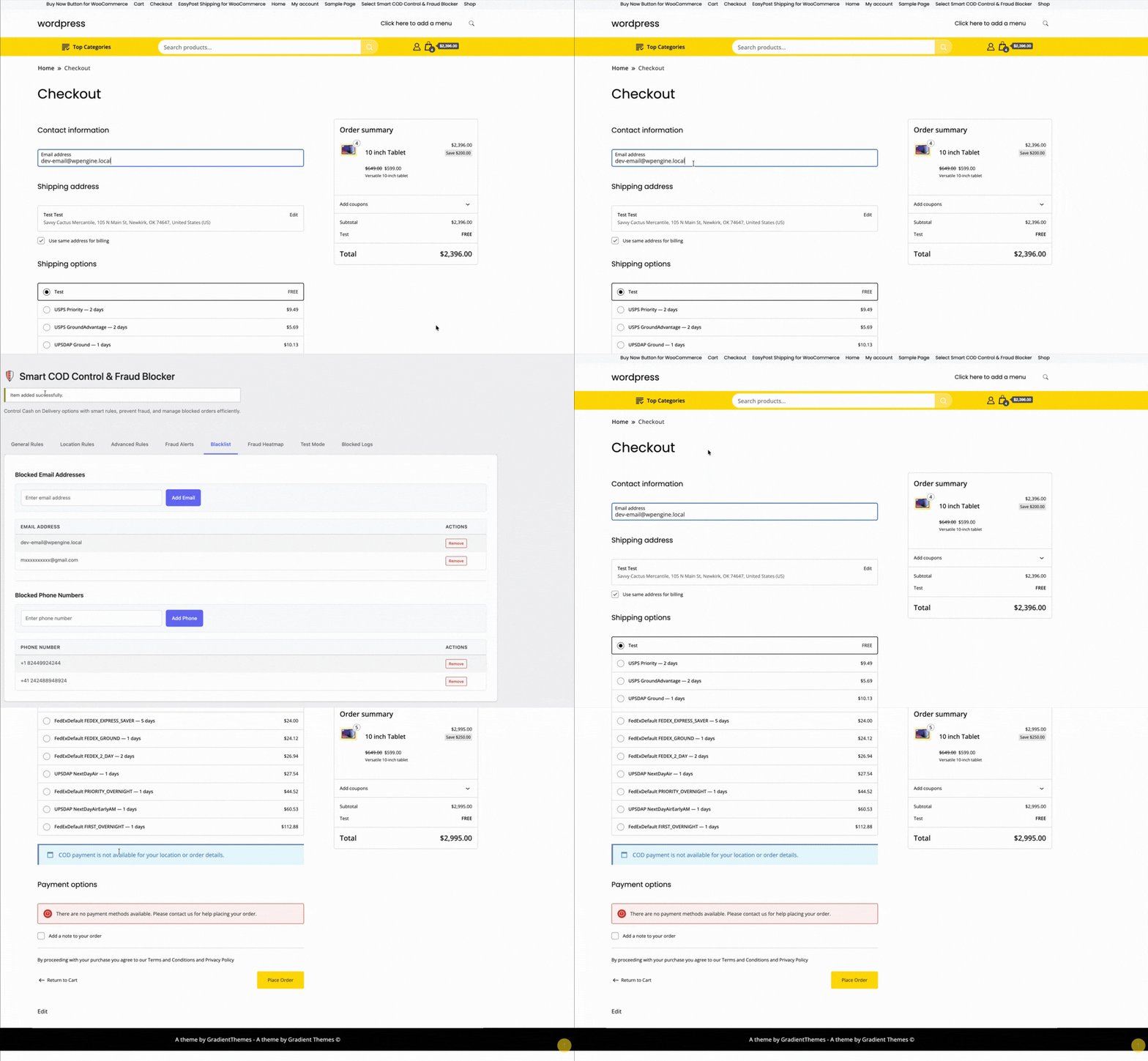
Smart COD Control is built for this balance:
- OTP verification eliminates fake COD orders before they ship
- Pincode blocking removes high-RTO areas from your COD coverage
- Customer trust scoring rewards repeat buyers with smoother COD access
- COD fees nudge customers toward UPI and online payment
The Shipping Rate Problem
India has a complex carrier landscape — Delhivery, Shiprocket, BlueDart, DTDC, India Post, Xpressbees — each with different rate structures, coverage, and performance. Managing carrier selection and rate display is time-consuming without the right tools.
TheForge EasyPost Shipping connects to multiple carriers via a single API, displays live rates at checkout, and generates labels directly from your WooCommerce dashboard. For stores shipping domestic and international parcels, the bulk label printing feature alone saves significant daily time.

The Conversion Problem
Mobile commerce is dominant in South Asia — over 70% of ecommerce traffic comes from smartphones. Mobile checkout friction is a significant conversion killer. Long checkout flows, multi-step cart pages, and small touch targets all reduce conversion.
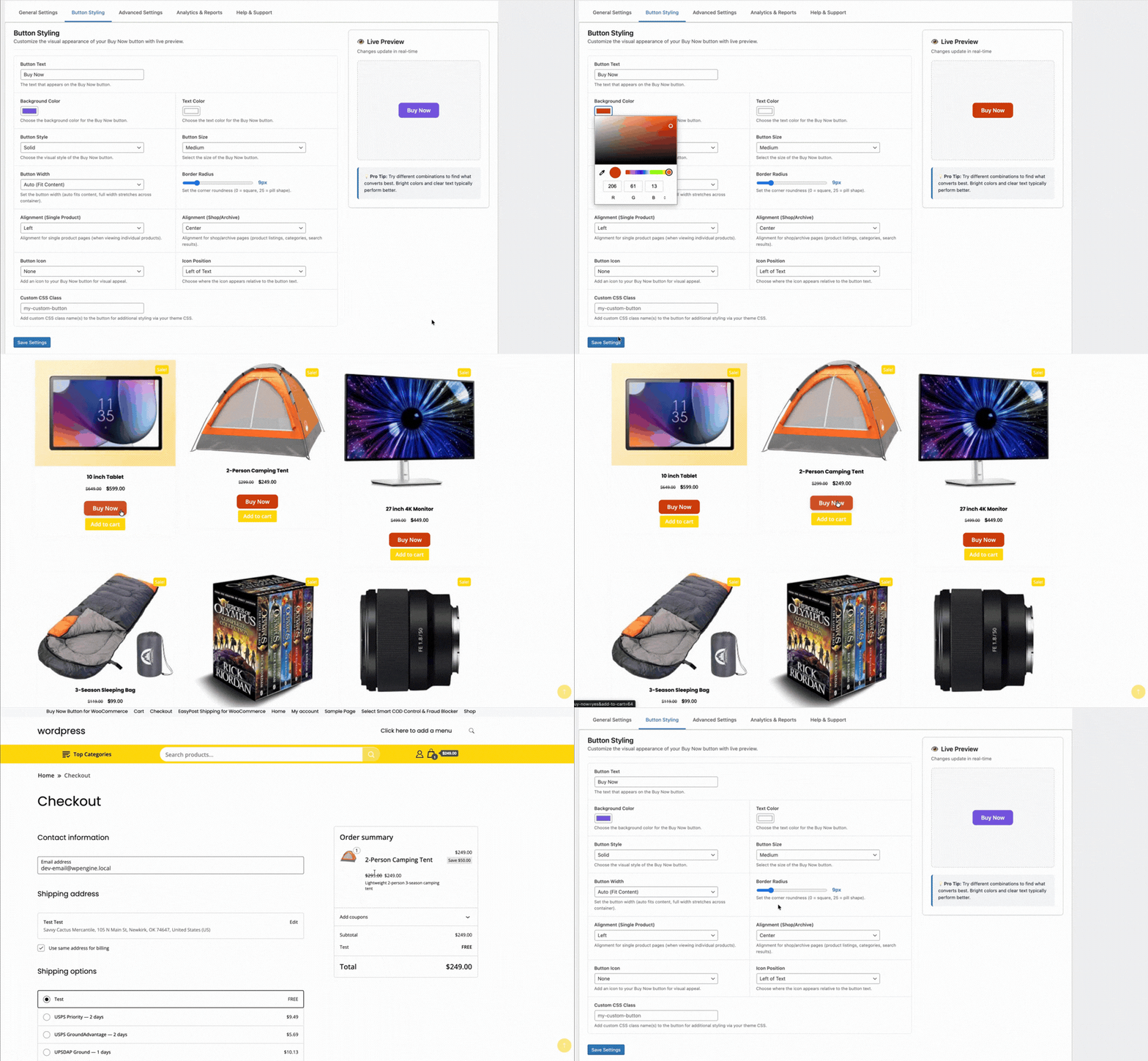
TheForge Buy Now Button compresses the checkout flow to two steps for mobile users. For stores driving traffic from WhatsApp campaigns, Facebook ads, and Instagram — all of which are major acquisition channels in the region — a direct Buy Now link is transformatively effective.
The Stack in Practice
A typical ThePluginForge setup for a South Asian WooCommerce store:
- Smart COD Control — OTP for new customers, pincode blocks for problem areas, ₹40 COD fee
- EasyPost Shipping — live carrier rates, bulk labels generated daily, automated tracking emails
- Buy Now Button — on all product pages, full-width on mobile, single-item checkout mode
All three plugins are free with no upsells or subscriptions. Start at thepluginforge.com or get help at the support page.
Shipping insurance is one of those things that feels optional until you need it. A high-value shipment gets lost, damaged, or stolen — and without insurance, you absorb the loss. EasyPost’s shipment insurance API makes it easy to protect orders directly from your WooCommerce dashboard.
How EasyPost Insurance Works
EasyPost offers its own insurance product (underwritten by a third-party insurer) that can be added to any shipment you create via the API. The premium is typically 1% of the declared value with a minimum of around $1 per shipment — significantly cheaper than carrier-provided insurance for most cases.
The TheForge EasyPost Shipping plugin integrates this directly into the label generation flow.
Adding Insurance to a Label
When generating a label from the WooCommerce order screen, you’ll see an Add Insurance option with a field for the declared value. Enter the item value, and the insurance premium is calculated and shown. Confirm, and the label is generated with insurance attached.
For bulk label generation, you can configure the plugin to automatically add insurance to any order above a configurable value threshold — so high-value orders are always protected without manual intervention.
Offering Insurance at Checkout
You can also offer shipment insurance as an optional add-on at checkout. The customer sees a checkbox — “Add shipment insurance for $X.XX” — and can choose whether to include it. The insurance cost is calculated based on the order total and the EasyPost rate.
This approach lets customers who want the peace of mind pay for it, while keeping checkout simple for customers who don’t.
Filing Claims
If an insured shipment is lost or damaged, you file a claim directly with EasyPost (not the carrier). EasyPost’s claims process is straightforward — you submit the claim with the shipment details and evidence of value, and EasyPost handles it from there.
When to Auto-Insure
A useful rule of thumb: auto-insure any shipment where the item value exceeds the cost of a reasonable self-insurance reserve. For most stores, that’s somewhere between $100–$500 depending on your shipping volume and loss history.
Questions? Visit the ThePluginForge support page.
Download TheForge EasyPost Shipping free →
If you ship significant volume, dropping packages at the post office or a carrier drop-off point every day adds unnecessary time to your fulfilment workflow. Carrier pickup scheduling lets you book a collection at your address — the carrier comes to you.
The TheForge EasyPost Shipping plugin handles pickup scheduling directly from WordPress, without requiring you to log into the carrier’s website or make a phone call.
Which Carriers Support Pickup Scheduling?
Pickup scheduling is supported for major carriers via EasyPost:
- USPS — free package pickup at your address, scheduled up to 30 days in advance
- UPS — on-demand pickup or scheduled daily pickup (daily pickup has a weekly fee)
- FedEx — scheduled pickup at your address
- DHL — pickup scheduling via the EasyPost API
Scheduling a Pickup
From the EasyPost → Pickups panel in your WooCommerce dashboard, select the carrier, enter the pickup address (defaults to your store address), specify the earliest and latest window for the pickup, and choose the date. The plugin sends the request to EasyPost, which forwards it to the carrier’s pickup scheduling system.
You’ll receive a pickup confirmation number which the plugin stores against the pickup record. If you need to cancel, you can do so from the same panel — again, without leaving WordPress.

Pickup vs Drop-Off: Which Is Better?
For low-volume stores (under 10 packages per day), drop-off is usually fine. For higher volumes:
- USPS scheduled pickup is free and a no-brainer if you use USPS
- UPS daily pickup is cost-effective once you’re shipping consistently
- On-demand pickup is flexible for irregular shipping schedules
Combining Pickup with Bulk Labels
The workflow that saves the most time: generate all your labels in bulk at the same time each morning using the labels panel, then schedule a carrier pickup for later that day. Your packages are labelled, stacked, and ready — the carrier collects them without any further action from you.
For questions about pickup scheduling, visit the ThePluginForge support page.