Effective Date: April 29, 2026
Last Updated: April 29, 2026
Overview
This Cookie Policy explains how The Plugin Forge uses cookies and similar technologies when you visit our website.
We keep things simple. We use cookies only where necessary to make our website work properly, improve performance, and understand basic usage — not to track your business or your customers.
By continuing to use our website, you agree to the use of cookies as described in this policy, where applicable.
What Are Cookies
Cookies are small text files stored on your device when you visit a website. They help websites function correctly, remember preferences, and improve user experience.
Cookies can be:
- Session cookies — removed when you close your browser
- Persistent cookies — remain until they expire or are deleted
- First-party cookies — set by our website
- Third-party cookies — set by external services
How We Use Cookies
We use cookies for a limited set of purposes:
- To ensure website functionality
- To enable secure login and checkout
- To improve performance and usability
- To understand general website usage
- To maintain security and prevent abuse
We do not use cookies to track your store data, your customers, or plugin usage inside your WordPress site.
Types of Cookies We Use
Essential Cookies
These cookies are required for the website to function properly. They support core features like navigation, login, and security.
Without these cookies, the site may not work as expected.
Performance & Analytics Cookies
These cookies help us understand how visitors interact with our website using aggregated and anonymized data.
We use this information to improve performance and user experience — not to build user profiles.
Functionality Cookies
These cookies remember your preferences, such as language or region, to provide a smoother experience.
Marketing Cookies
We keep marketing cookies minimal.
If used, they are only enabled with your consent and are used to understand content performance — not invasive tracking.
Third-Party Cookies
We may rely on trusted third-party services such as:
- Payment providers
- Hosting services
- Analytics tools
These services may set cookies when you interact with them. Their use of cookies is governed by their own privacy policies.
Other Technologies
In some cases, we may use similar technologies such as:
- Pixels
- Scripts
- Web beacons
These are used only for performance, analytics, or security purposes — not for intrusive tracking.
Cookie Duration
Cookies may be stored for different durations:
- Session cookies expire when you close your browser
- Persistent cookies remain until they expire or are deleted
Your Choices
You have full control over cookies.
You can:
- Accept or reject cookies via our cookie banner
- Manage preferences through your browser settings
- Delete existing cookies at any time
Disabling certain cookies may affect how the website functions.
Do Not Track & Global Signals
Some browsers offer “Do Not Track” or Global Privacy Control signals.
We aim to respect applicable privacy standards and will continue improving support for such signals where required.
Data Collected via Cookies
Cookies may collect limited technical data such as:
- IP address
- Browser type
- Device information
- Pages visited
- Time spent on pages
This data is used in aggregated or anonymized form for performance and security.
Data Transfers
Data collected through cookies may be processed in different regions depending on our service providers. We ensure appropriate safeguards are in place.
Updates to This Policy
We may update this Cookie Policy from time to time. Continued use of our website means you accept the updated version.
Contact
For questions about this policy:
Effective Date: April 29, 2026
Last Updated: April 29, 2026
Overview
At The Plugin Forge, we aim to ensure you’re satisfied with your purchase. As our products are digital downloads, we encourage you to contact our support team before requesting a refund so we can help resolve any issues quickly.
Refund Eligibility
We offer a 30-day money-back guarantee from the date of purchase.
A refund will be issued only if the plugin does not function as described and our support team is unable to resolve the issue after reasonable troubleshooting.
To be eligible, you must contact support, provide sufficient details about the issue, and allow us a reasonable opportunity to investigate.
Conditions for Approval
To qualify for a refund:
- You must provide a clear description of the issue
- You must cooperate with our support team during troubleshooting
- You must stop using the plugin after requesting a refund
Failure to meet these conditions may result in denial.
Non-Refundable Cases
Refunds are not provided for:
- Change of mind after purchase
- Compatibility issues outside documented requirements
- Lack of technical knowledge or setup issues
- Failure to review product details before purchase
- Requests made after 30 days
- Issues caused by third-party plugins, themes, hosting, or services
- Continued use of the plugin after requesting a refund
Subscriptions & Renewals
Refunds are not applicable to renewals or subscription payments.
You are responsible for cancelling auto-renewal before the billing date. No refunds are provided for partially used subscription periods.
Duplicate Purchases
Duplicate purchases may be refunded if reported within a reasonable timeframe and verified by us.
Abuse Prevention
To prevent misuse:
- Refunds may be limited for repeated requests
- Multiple refund requests across products may be declined
- Requests may be reviewed across accounts, domains, or payment methods
We reserve the right to refuse refunds in cases of suspected abuse or fraud.
Fraud & Unauthorized Transactions
If a transaction appears fraudulent or unauthorized, we may suspend access, cancel the order, or delay refund processing until verification is completed.
Refund Requests
To request a refund, contact:
support@thepluginforge.com
Include:
- Order details or transaction ID
- Website URL (if applicable)
- A clear description of the issue
We typically respond within 1–2 business days.
Refund Processing
Approved refunds are processed within 5–10 business days.
Processing time may vary depending on your payment provider. We are not responsible for delays caused by banks or third-party processors.
Payment Method
Refunds are issued only to the original payment method used during purchase.
Chargebacks & Disputes
Initiating a chargeback without contacting us first may result in:
- Immediate account suspension
- License revocation
- Restriction from future purchases
We reserve the right to dispute chargebacks.
License Revocation
Upon refund approval:
- Your license key will be deactivated
- Access to updates, downloads, and support will be revoked
Continued use after a refund may violate our Terms.
Digital Product Nature
All products are digital downloads. No physical goods are shipped. Access is typically provided immediately after purchase.
Support Commitment
Even if a refund is not granted, we will make reasonable efforts to help resolve your issue.
Limitation of Liability
Refunds are limited to the amount paid. We are not liable for any indirect losses, including data loss, downtime, or business impact.
Changes to This Policy
We may update this policy at any time. Continued use of our services constitutes acceptance of the updated terms.
Contact
For refund-related queries:
support@thepluginforge.com
Effective Date: April 29, 2026
Last Updated: April 29, 2026
Overview
The Plugin Forge respects your privacy. We build WordPress and WooCommerce plugins that operate within your own environment, and we intentionally avoid unnecessary data collection, tracking, or external data processing.
This Privacy Policy explains what information we collect, how we use it, and how we protect it when you use our website, products, and services.
By using our services, you agree to this policy.
What We Collect
We collect only the information necessary to operate our services.
Information You Provide
- Name and email address
- Account and billing details
- Support communication
Technical Information
- IP address
- Browser and device details
- Basic usage data for security and performance
Payments are processed through third-party providers. We do not store or process your card details.
How Our Plugins Handle Data
Our plugins are built with a local-first architecture:
- All operational data stays inside your WordPress database
- No customer, order, or store data is sent to our servers
- No tracking scripts or hidden analytics are included
Limited communication with our servers may occur only for:
- License validation
- Update delivery
- Security checks
This communication includes only minimal technical data such as license key, domain, and plugin version — never your customer data.
How We Use Your Information
We use your information to:
- Provide and maintain our services
- Process purchases and manage licenses
- Deliver updates and support
- Improve product performance
- Prevent fraud and ensure security
- Send important service-related communication
We do not sell or trade your personal data.
Third-Party Services
We may work with trusted providers for:
- Payment processing
- Hosting and infrastructure
- Email communication
These providers only receive the data required to perform their function.
If you use integrations with external services, their data handling is governed by their own policies.
Cookies
We use cookies to:
- Ensure website functionality
- Understand usage patterns
- Improve user experience
You can manage cookies through your browser settings.
Data Retention
We retain data only as long as necessary to:
- Provide services
- Comply with legal obligations
- Resolve disputes
When no longer needed, data is securely deleted or anonymized.
Data Minimization
We follow a strict principle: collect only what is necessary, nothing more.
Your Rights
Depending on your location, you may have rights to:
- Access your data
- Correct inaccurate data
- Request deletion
- Withdraw consent
- Restrict or object to processing
To exercise these rights, contact:
support@thepluginforge.com
Data Security
We implement reasonable technical and organizational measures to protect your data. However, no system can guarantee absolute security.
International Data Transfers
Your data may be processed in different countries depending on our service providers. We ensure appropriate safeguards are in place.
Children’s Privacy
Our services are not intended for individuals under 18. We do not knowingly collect data from minors.
Legal Disclosure
We may disclose information if required by law or to protect our legal rights.
Business Transfers
If The Plugin Forge is involved in a merger, acquisition, or asset sale, your data may be transferred as part of that process.
Changes to This Policy
We may update this Privacy Policy from time to time. Continued use of our services means you accept the updated policy.
Contact
For any privacy-related questions or requests:
Effective Date: Jan 15, 2026
Last Updated: April 29, 2026
Overview
By accessing or using The Plugin Forge website, products, or services, you agree to be bound by these Terms & Conditions. The Plugin Forge develops and distributes WordPress and WooCommerce plugins, including free and premium products, subscription-based offerings, support plans, and customization services. We reserve the right to modify, suspend, or discontinue any part of our services at any time without prior notice.
Accounts & Access
If you create an account, you are responsible for maintaining its confidentiality, ensuring all information is accurate, and accepting responsibility for all activities under your account. We reserve the right to suspend or terminate accounts in cases of misuse, fraud, or violation of these Terms.
Licensing
All plugins are licensed, not sold. Upon purchase, you are granted a limited, non-exclusive, non-transferable license to use the plugin in accordance with your selected plan, which may include single-site, multi-site, unlimited, or bundled access. Each license includes a key required for updates, downloads, and support, and must not be shared, resold, or distributed. If a license expires, the plugin may continue functioning, but access to updates and support will cease.
License Scope & Usage
A “site” refers to a unique WordPress installation, including staging or development environments unless otherwise specified. Bundle licenses may include multiple plugins and may provide access to future updates only where explicitly stated.
Free Trials
We may offer free trials for selected products. Trials must be cancelled before the trial period ends to avoid charges. Failure to cancel may result in automatic billing. Trial eligibility may be limited per user, domain, or payment method, and we reserve the right to modify or discontinue trials at any time.
Subscriptions & Renewals
Certain products may be offered on a subscription basis. Subscriptions are billed in advance and automatically renew unless cancelled before the renewal date. If cancelled, access continues until the end of the billing period. No refunds are provided for partially used subscription periods.
Payments & Pricing
All prices are subject to change without notice. Payments are processed through third-party providers, and applicable taxes may be added based on your location. We are not responsible for payment processing errors, currency conversion differences, bank charges, or issues caused by third-party providers.
Delivery & Access
Upon successful payment, plugin files and license keys are made available via your account and/or email. Access to downloads may be restricted if your license expires, is refunded, or is terminated.
Updates & Changes
Plugin updates are available only with an active license. We reserve the right to modify, enhance, or discontinue features at any time and do not guarantee compatibility with future versions of WordPress, WooCommerce, or third-party systems.
Refund Policy
We offer a 30-day refund policy only if the plugin does not function as described and the issue cannot be resolved by our support team. Refunds are not provided for change of mind, compatibility issues outside documented requirements, lack of technical knowledge, or requests made after the refund period.
https://thepluginforge.com/refund-policy/
Support & Scope
Support is available only with an active license and is limited to issues directly related to our plugins, including functionality assistance and usage guidance. Support does not include custom development, advanced integrations, server-related issues, or extensive third-party conflict resolution beyond reasonable effort. We may limit support requests and do not guarantee response times.
Support Plans
We may offer multiple support tiers with varying levels of priority and scope, and we reserve the right to define or modify these plans at any time.
Customization Services
Customization or integration services are quoted separately based on a defined scope of work. These services are non-refundable once delivered and are not included within standard support. We are not responsible for issues arising from third-party changes after delivery.
Support Access Requirements
To provide support, we may require access to your website or technical environment. You are responsible for maintaining backups before granting access. Failure to provide necessary access may limit our ability to assist.
Compatibility & Responsibilities
While we aim to ensure compatibility with supported versions of WordPress and WooCommerce, we do not guarantee compatibility with all themes, plugins, hosting environments, or browsers. You are responsible for verifying compatibility before purchase, maintaining backups, and testing plugins in staging environments before deploying to production.
Platform Disclaimer
Our plugins are tools intended to assist users, and we are not responsible for how they are used or for any outcomes resulting from their use.
User Content & Feedback
If you submit feedback or suggestions, you grant us a worldwide, non-exclusive, royalty-free license to use, modify, and improve our products based on that feedback.
User Conduct
You agree not to misuse our services, engage in unlawful activity, or attempt to gain unauthorized access to our systems.
Enforcement & Remedies
We reserve the right to suspend or terminate accounts, revoke licenses, restrict access, or take legal action if these Terms are violated.
Digital Product Nature
All products are digital downloads, and no physical goods are shipped.
Third-Party Dependencies
Our plugins rely on third-party platforms such as WordPress and WooCommerce, and we are not responsible for issues caused by these platforms.
Third-Party Platforms
Purchases made through third-party marketplaces are subject to their respective terms and conditions.
Payment & Fraud Prevention
We may cancel transactions or suspend accounts in cases of suspected fraud or abuse.
Intellectual Property
All branding, trademarks, and proprietary systems remain the exclusive property of The Plugin Forge.
Disclaimer of Warranties
All products and services are provided “as is” without warranties of any kind.
Limitation of Liability
To the fullest extent permitted by law, The Plugin Forge shall not be liable for any direct, indirect, incidental, or consequential damages, including data loss, downtime, or loss of revenue.
Indemnification
You agree to indemnify and hold The Plugin Forge harmless from any claims, damages, or liabilities arising from your use, misuse, or violation of these Terms.
Force Majeure
We are not liable for delays or failures caused by events beyond our reasonable control.
Electronic Communication
You agree to receive communications electronically and are responsible for maintaining a valid email address.
Linking & Usage Restrictions
You may link to our website in a fair manner but may not frame, copy, or replicate our content without permission.
Assignment
We may transfer our rights under these Terms at any time. You may not transfer your rights without prior consent.
No Waiver
Failure to enforce any provision of these Terms does not constitute a waiver of our rights.
Dispute Resolution & Jurisdiction
We encourage resolving disputes through good-faith communication. If unresolved, disputes shall be subject to the jurisdiction of courts in India.
Governing Law
These Terms are governed by the laws of India.
Entire Agreement
These Terms, along with our Privacy Policy and Refund Policy, constitute the entire agreement between you and The Plugin Forge.
Severability
If any provision of these Terms is found invalid or unenforceable, the remaining provisions shall remain in full effect.
Changes to Terms
We may update these Terms at any time. Continued use of our services constitutes acceptance of the updated Terms.
Contact
For support or legal inquiries:
support@thepluginforge.com
Shipping is typically the second or third largest operational expense for e-commerce businesses, after product cost and sometimes marketing. Unlike marketing, shipping costs compound — every order you fulfill has a shipping cost attached. Reducing that cost by 15-20% across all shipments has a significant impact on margin. Here’s how to do it with EasyPost and WooCommerce.
Understand How Carriers Price Shipments
Before optimizing, understand what you’re optimizing against. Carriers price shipments based on:
- Actual weight — the physical weight of the package
- Dimensional weight (DIM weight) — calculated as (L × W × H) ÷ DIM factor. Carriers charge whichever is higher.
- Zone — distance between origin and destination ZIP codes. Zone 1 is nearby; Zone 8 is cross-country.
- Service level — ground vs. express vs. priority
- Surcharges — residential delivery, fuel surcharge, oversized, signature required
The two biggest levers are reducing DIM weight (using right-sized boxes) and choosing the cheapest carrier+service for each shipment.
Strategy 1: Use the Smallest Box That Fits
DIM weight is calculated from your box dimensions, not your product dimensions. A small product in a large box pays large-box DIM weight pricing. Using right-sized boxes consistently reduces DIM weight charges — often by 20-30% for lightweight products in standard packaging.
The TheForge EasyPost Shipping plugin includes a 3D bin packing algorithm that automatically selects the smallest box from your configured box sizes for each order. This isn’t just about efficiency — it’s a direct cost reduction mechanism.
Strategy 2: Compare Rates Across Carriers Automatically
EasyPost’s core value proposition is multi-carrier rate comparison. For every shipment, EasyPost returns rates from every carrier your account has access to — USPS, UPS, FedEx, DHL, and more — ranked by price. The cheapest option for a 2lb package going to Zone 3 might be USPS Ground Advantage one week and UPS Ground the next, depending on fuel surcharges and zone pricing.
Manual carrier comparison is impractical at scale. EasyPost does it automatically, and the shipping plugin surfaces the lowest rate at checkout and in the order management screen.
Strategy 3: USPS Commercial Pricing
EasyPost accounts get access to USPS Commercial pricing (also called Commercial Base Pricing or CBP) — rates that are significantly lower than retail Post Office prices. For USPS Priority Mail, commercial rates are typically 15-25% lower than retail. For USPS Ground Advantage (formerly First Class and Retail Ground), commercial rates make it competitive with UPS and FedEx Ground for packages under 1lb.
This pricing is included in your EasyPost account at no additional cost and applied automatically to every USPS rate request.
Strategy 4: UPS and FedEx Negotiated Rates
If you ship significant volume with UPS or FedEx (50+ packages/week), you’re eligible for negotiated rates directly with the carrier. These can be 30-50% below published rates for high-volume shippers. EasyPost supports importing your negotiated rates via carrier accounts, so the plugin automatically uses your discount rates when calculating and purchasing labels.
Strategy 5: Flat Rate Shipping for Predictable Products
For products with consistent dimensions and weight, USPS flat rate packaging eliminates zone-based pricing entirely. A USPS Priority Mail flat rate box ships anywhere in the US for the same price regardless of weight (up to 70lbs) or destination.
The plugin lets you configure flat rate rules — for example, “if order weight is under 5lbs and fits in a flat rate envelope, use USPS Priority Mail flat rate.” Applied to the right products, this simplifies pricing and reduces cost for zone-heavy destinations.
Strategy 6: Reduce Surcharges
Surcharges add up. Common avoidable surcharges:
- Residential delivery — unavoidable for B2C but factor it into rate comparison
- Address correction — eliminated by address validation at checkout (the plugin handles this)
- Oversize — avoidable by choosing the right packaging; know each carrier’s oversize thresholds
- Signature required — only add when genuinely necessary; it adds $4-6 per package
Strategy 7: Automate to Eliminate Fulfillment Overhead
Labor cost is a shipping cost. Manual label printing — finding the order, choosing a carrier, printing the label, updating tracking — takes 2-5 minutes per order. At 50 orders/day, that’s 2-4 hours of fulfillment time daily.
The TheForge EasyPost Shipping plugin includes automation rules that purchase labels automatically when orders are paid — choosing the right carrier, the right service, and applying your box configuration without manual intervention. Bulk label printing handles the rest. Your team focuses on picking and packing, not on shipping software.
Putting It Together
The compounding effect of these strategies is significant. Right-sized boxes reduce DIM weight by 20%. Carrier comparison finds the cheapest option for each shipment. Commercial pricing reduces USPS costs by 15-25%. Address validation eliminates correction surcharges. Automation eliminates fulfillment labor time.
Applied together, stores typically reduce their per-shipment cost by 20-35% compared to manual carrier accounts and retail pricing.
Ready to get started? Get the TheForge EasyPost Shipping plugin or talk to our team about your specific shipping setup.
We have been working hard behind the scenes, and today we are excited to share everything that landed in the Smart COD Control v1.3 release cycle. This is the biggest update to the plugin since launch — two flagship features, a redesigned admin experience, and a stack of smaller improvements under the hood.

What Is Smart COD Control?
Smart COD Control is a WooCommerce plugin that gives store owners complete control over when Cash on Delivery is available at checkout. Hide COD by cart value, shipping zone, product category, customer history, and more — all without writing any code. It also includes fraud prevention tools to reduce fake orders and RTO rates.
New in v1.3.0: Visual Rule Builder
Before v1.3, setting COD rules required navigating separate settings panels for each condition type. The new Visual Rule Builder brings everything into one unified drag-and-drop interface.
Key capabilities:
- Create rule groups with multiple conditions
- AND logic within a group, OR logic between groups
- Filter by cart total, product, category, shipping zone, state, user role, coupon, and order history
- One-click pre-built rule templates for the most common use cases
- Rules activate instantly — no cache flush needed
New in v1.3.1: OTP Phone Verification
Fake COD orders are a significant cost center for stores in emerging markets. A customer who never intended to accept delivery places an order impulsively, you ship the product, and it comes back at your expense. OTP verification addresses this at the source.
When enabled, customers selecting Cash on Delivery must verify their phone number with a one-time SMS code before the order is placed. No code — no order. The friction is minimal for genuine buyers but effectively eliminates throwaway orders.
Supported SMS providers:
- Twilio — global coverage, straightforward setup with Account SID and Auth Token
- Vonage — competitive rates in South Asia and the Middle East, alphanumeric sender IDs

Enhanced Blacklisting and Approval Workflow
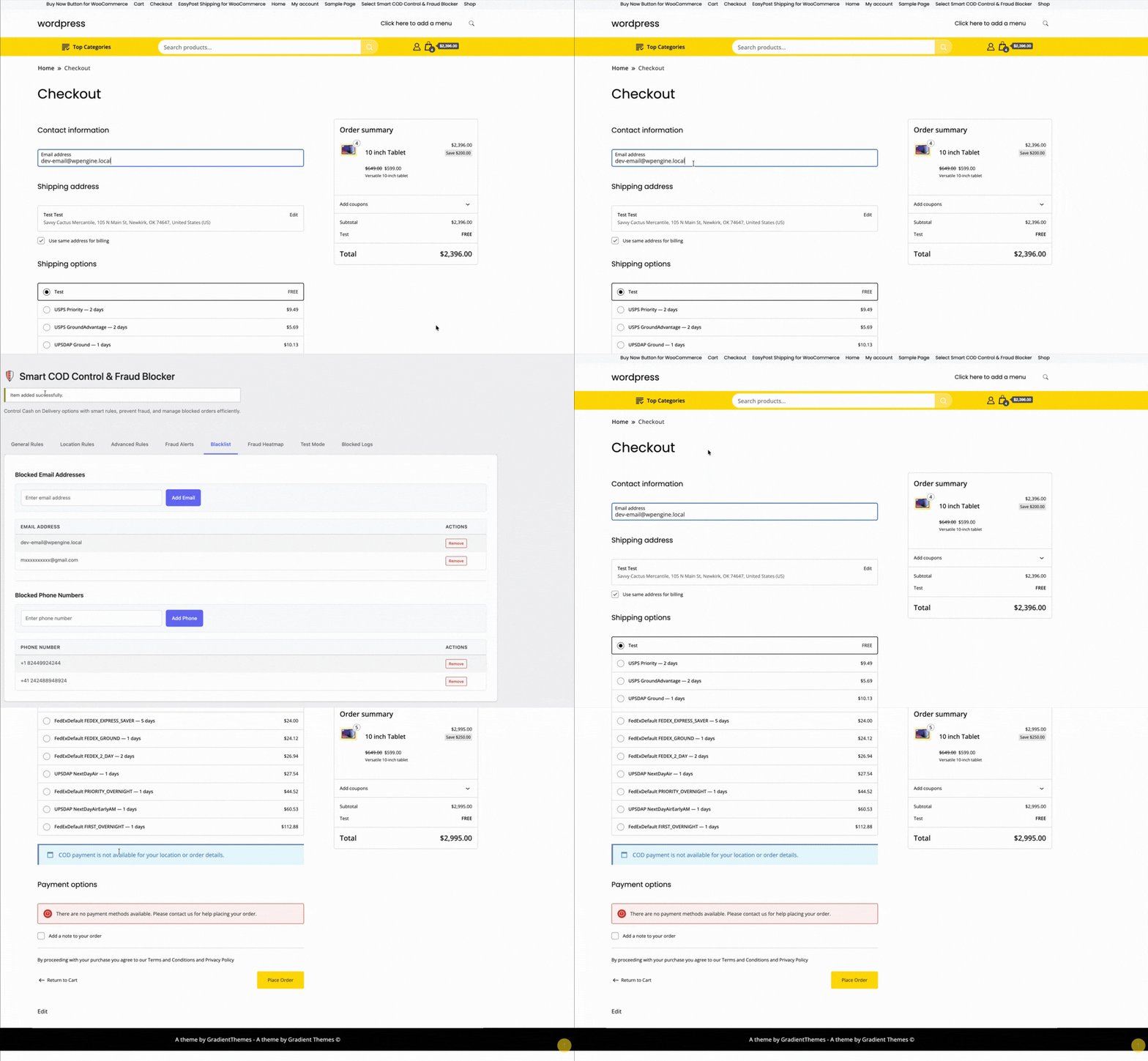
The blacklist system has been upgraded with a new admin approval workflow. Flag customers as requiring manual review — their COD orders go into a pending queue that your team approves or rejects before processing. This is ideal for stores with VIP or high-risk order tiers.
Fraud Analytics and Heatmap
The analytics tab now includes a geographic view of COD order activity. Spot regions with elevated cancellation rates at a glance and feed that data back into your Rule Builder to tighten restrictions exactly where they are needed.
Full Changelog
v1.3.1
- Added: OTP phone verification at checkout for COD orders
- Added: Twilio SMS integration
- Added: Vonage SMS integration
- Added: Customisable OTP message template
- Fixed: Rule Builder condition ordering edge case on save
v1.3.0
- Added: Visual Rule Builder with AND/OR logic
- Added: Pre-built rule templates
- Added: Drag-and-drop rule group reordering
- Improved: Admin UI redesign for COD settings
v1.2.0
- Added: Admin approval / blacklist workflow
- Added: Fraud analytics dashboard
- Improved: Performance on high-traffic stores
How to Update
Update via WordPress Dashboard → Plugins → Updates. All existing settings are migrated automatically — no reconfiguration needed. After updating, visit the new Rule Builder tab to explore the interface, and the OTP Settings tab to enable phone verification.
Questions or feedback? Reach us through the support page — we read every message.
Smart COD Control v1.3.1 supports Vonage (formerly Nexmo) as an SMS provider for OTP verification. Vonage offers competitive rates across South Asia, the Middle East, and Southeast Asia — regions where Cash on Delivery is most popular. This guide walks you through the full setup.
What You Will Need
- A Vonage API account (free trial available)
- Smart COD Control v1.3.1 or newer installed and active
Step 1: Create a Vonage Account
- Go to vonage.com and click Sign Up Free.
- Verify your email. Vonage provides free trial credit so you can test SMS immediately.
- Once logged in, go to the Vonage API Dashboard.
Step 2: Get Your API Credentials
- On the dashboard, find the API key and API secret at the top.
- Copy both values — you will paste them into Smart COD Control.
Tip: Never share your API secret publicly. Treat it like a password.
Step 3: Set Your Sender Name
With Vonage you can use an alphanumeric sender ID (e.g., MyStore) in most countries. Go to Account → API settings in the Vonage dashboard to configure your default sender name. Note that some countries (like India) require a registered DLT sender ID — check Vonage documentation for your region.
Step 4: Configure Smart COD Control
- Go to WooCommerce → Smart COD Control → OTP Settings.
- Toggle Enable OTP Verification to ON.
- Under SMS Provider, select Vonage.
- Enter your API Key and API Secret.
- Set the From Name (your brand name or phone number).
- Click Save Settings.
Step 5: Customise the OTP Message
Use the {otp} placeholder in your message. Keep it under 160 characters. Example:
Your MyStore COD verification code is {otp}. Do not share this code.
Step 6: Test It
- Open an incognito window and go through checkout.
- Select Cash on Delivery.
- Enter your own phone number and click Send Code.
- You should receive an SMS from Vonage within seconds.
- Enter the code and complete the order.
Vonage vs Twilio — Which Should You Choose?
| Feature | Vonage | Twilio |
|---|---|---|
| Best for | Asia, Middle East | Global / US-heavy |
| Pricing | Competitive in APAC | Standard global rates |
| Sender ID | Alphanumeric supported | Numeric only in many regions |
| Free trial | Yes | Yes |
Both providers work seamlessly with Smart COD Control. Choose based on your geography and pricing preference — you can switch at any time from the plugin settings without losing data.
Smart COD Control supports two SMS providers for OTP verification: Twilio and Vonage. This guide walks you through setting up Twilio — the most widely used SMS API worldwide — step by step.

What You Will Need
- A Twilio account (free trial is fine for testing)
- Smart COD Control v1.3.1 or newer installed and active
- A verified Twilio phone number
Step 1: Create a Twilio Account
- Go to twilio.com and sign up for a free account.
- Verify your email address and phone number during signup.
- Once logged in, you will land on the Twilio Console Dashboard.
Step 2: Get Your API Credentials
- Find the Account Info section on the dashboard.
- Copy your Account SID — it starts with
AC. - Copy your Auth Token — click the eye icon to reveal it.
Step 3: Get a Twilio Phone Number
- Go to Phone Numbers → Manage → Buy a Number.
- Filter by your country and ensure the number has SMS capability.
- Click Buy (free trial accounts get one number at no charge).
- Copy the number in E.164 format, e.g.
+14155552671.
Note: On a free trial, Twilio can only send SMS to verified numbers. Upgrade to a paid account to send to any number.
Step 4: Configure Smart COD Control
- Go to WooCommerce → Smart COD Control → OTP Settings.
- Toggle Enable OTP Verification to ON.
- Under SMS Provider, select Twilio.
- Paste your Account SID and Auth Token.
- Enter your Twilio phone number in the From Number field (include the
+and country code). - Click Save Settings.
Step 5: Customise the OTP Message
Use the placeholder {otp} where you want the code to appear. Example:
Your verification code for your COD order at MyStore is {otp}. Valid for 10 minutes.
Step 6: Test It
- Open your store in an incognito window and add a product to cart.
- At checkout, select Cash on Delivery.
- Enter a verified phone number, click Send Code, and enter the received OTP.
- Complete the order to confirm everything works.
Troubleshooting
- SMS not arriving — Double-check your Account SID, Auth Token, and From Number. Trial accounts can only send to verified numbers.
- Invalid credentials error — Re-copy credentials from the console and watch for accidental whitespace.
- Country not supported — Some countries require a local Twilio number. Check Twilio coverage docs.
Once connected, customers receive OTP codes within seconds and your COD cancellation rate will start dropping immediately.
ThePluginForge builds free WooCommerce plugins — EasyPost Shipping, Smart COD Control, and Buy Now Button — and backs them with real support. Here’s where to find help and how to get the most out of the support resources available.
Documentation
Each plugin has a dedicated documentation section covering installation, configuration, and all settings. Start there before submitting a support request — most common questions are answered in the docs.
- EasyPost Shipping docs — covers EasyPost account setup, carrier connection, rate configuration, label generation, and tracking
- Smart COD Control docs — covers OTP setup, gateway configuration, location rules, fee settings, and trust scoring
- Buy Now Button docs — covers installation, button configuration, variable products, shortcodes, and analytics
The Support Page
For issues not covered in the documentation, visit the ThePluginForge support page. Submit your question with:
- Your WordPress and WooCommerce versions
- The plugin version you’re running
- A clear description of the issue
- Any error messages you’re seeing (copy the exact text)
- What you’ve already tried
The more detail you provide, the faster your issue can be resolved.

Common Issues and Fixes
EasyPost Shipping: No rates appearing at checkout
Check that products have weight and dimensions set, that your EasyPost API key is valid, that carrier accounts are connected in your EasyPost dashboard, and that at least one carrier service is enabled in the plugin settings.
Smart COD Control: OTP not being received
Verify your SMS gateway API credentials, check that the phone number format is correct for your gateway (international format vs local format), and confirm there are no balance or sending limit issues with your gateway account.
Buy Now Button: Button not appearing
Check the plugin is active, that the product type is supported (simple or variable), and that the button hasn’t been disabled for that specific product or category in the plugin settings.
WordPress.org Support Forums
All three plugins are available on WordPress.org, which means they have public support forums on the plugin pages. The forums are monitored regularly and are a good place to search for issues others have encountered and resolved.
Staying Updated
Keep your plugins updated to the latest version — most bug fixes and compatibility updates are delivered via plugin updates. Enable automatic updates in WordPress or check for updates regularly in Dashboard → Updates.
Visit the ThePluginForge support page →
Smart COD Control is a comprehensive toolkit for managing Cash on Delivery in WooCommerce. This guide walks you through every major setting from first install to a fully configured COD management system.
Installation
Install Smart COD Control from the WordPress plugin directory or upload the plugin ZIP. Activate it, then navigate to WooCommerce → Smart COD in your admin menu.
1. General Settings
The General tab controls the top-level COD behaviour:
- Enable/disable COD — master switch for all Smart COD Control rules
- COD label — what the payment method is called at checkout (“Cash on Delivery”, “Pay on Delivery”, etc.)
- COD description — supporting text shown at checkout
- Minimum order amount — COD not available below this value
- Maximum order amount — COD blocked above this value
2. OTP Verification
Configure SMS gateway, OTP length, expiry, resend limits, and the message template. Test with a real phone number before enabling.
3. Location Rules
Set country, state, and pincode allowlists or blocklists. Start permissive and tighten based on your RTO data.

4. Fee Settings
Set a fixed, percentage, or combined COD fee. Configure the label text and any exemption rules (by customer history, order value, or product category).
5. Trust Rules
Define what constitutes a “trusted” customer. Trusted customers can receive lighter restrictions — skipping OTP, lower fees, higher COD value caps.

6. Product and Category Rules
Block COD for specific products or entire categories. High-value electronics, fragile goods, custom/personalised items — configure which products can and can’t be purchased via COD.
7. Analytics and Reporting
The analytics tab shows your COD vs prepaid order split, blocked order counts, and RTO trends over time. Use this data to tune your rules.

Recommended Starting Configuration
If you’re not sure where to start:
- Enable OTP verification for all new customers
- Set a maximum COD order value of 2× your average order value
- Add a modest COD handling fee (₹25–₹50 or 2–3%)
- Review your RTO data after 30 days and add pincode blocks for problem areas
Full documentation and a setup walkthrough video are available at the ThePluginForge support page.