Some products are inherently higher risk for Cash on Delivery returns. Fragile items that might arrive damaged. High-value electronics where the financial exposure on an RTO is significant. Customised or personalised products that can’t be restocked if returned. For these, blocking COD at the product or category level is the right approach.
Why Product-Level COD Rules?
Your store might be perfectly happy offering COD on most products — it drives conversion and serves customers in cash-heavy markets. But a blanket “COD allowed” policy that applies equally to a ₹200 accessory and a ₹15,000 laptop makes no sense from a risk perspective.
Smart COD Control lets you apply COD rules at the product and category level, so you can offer COD strategically rather than as an all-or-nothing proposition.
Setting Category-Level Rules
Go to WooCommerce → Smart COD → Product Rules → Categories. Select any product category and choose whether COD is:
- Allowed (default)
- Blocked — COD not available if the cart contains any product in this category
- Restricted — COD requires OTP verification or additional trust criteria when products from this category are in the cart
Setting Product-Level Rules
For individual products, the rule appears on the product edit screen under a new Smart COD tab. Override the category rule for specific products where needed — for example, allow COD on most electronics but block it for one particularly high-value item.
Mixed Cart Handling
When a cart contains products from multiple categories with different COD rules, Smart COD Control applies the most restrictive rule. If any product in the cart has COD blocked, COD is blocked for the entire order.
Practical Examples
- Electronics — block COD for items over ₹5,000, allow with OTP for items under ₹5,000
- Custom/personalised products — block COD entirely (can’t restock a personalised item)
- Fragile items — allow COD only after OTP verification
- Perishable goods — block COD (RTO means wasted product)
- Software/digital downloads — block COD (delivery is immediate, no physical return possible)
For help configuring product-level rules, visit the ThePluginForge support page.
Download Smart COD Control free →
Smart COD Control is a comprehensive toolkit for managing Cash on Delivery in WooCommerce. This guide walks you through every major setting from first install to a fully configured COD management system.
Installation
Install Smart COD Control from the WordPress plugin directory or upload the plugin ZIP. Activate it, then navigate to WooCommerce → Smart COD in your admin menu.
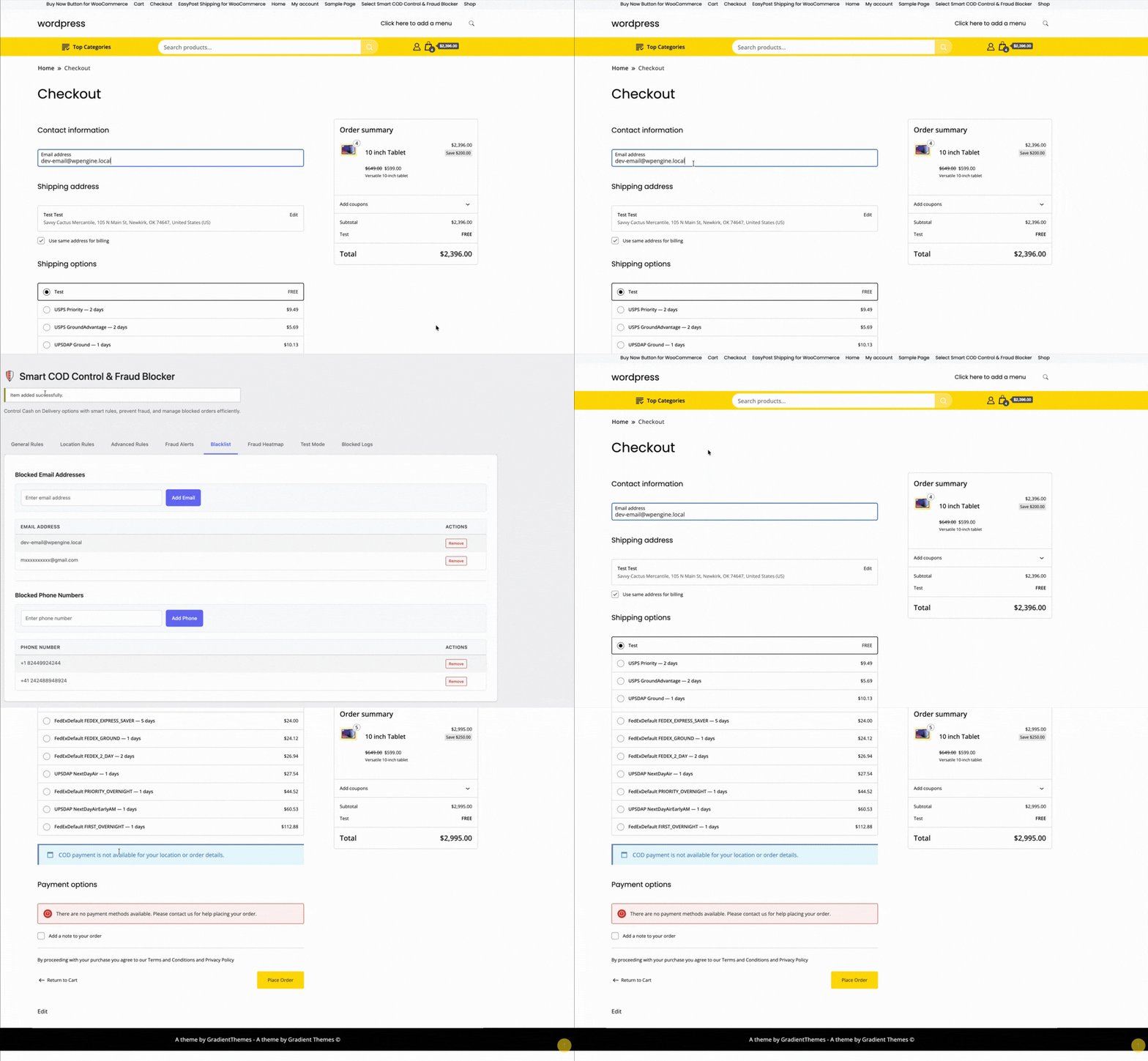
1. General Settings
The General tab controls the top-level COD behaviour:
- Enable/disable COD — master switch for all Smart COD Control rules
- COD label — what the payment method is called at checkout (“Cash on Delivery”, “Pay on Delivery”, etc.)
- COD description — supporting text shown at checkout
- Minimum order amount — COD not available below this value
- Maximum order amount — COD blocked above this value
2. OTP Verification
Configure SMS gateway, OTP length, expiry, resend limits, and the message template. Test with a real phone number before enabling.
3. Location Rules
Set country, state, and pincode allowlists or blocklists. Start permissive and tighten based on your RTO data.

4. Fee Settings
Set a fixed, percentage, or combined COD fee. Configure the label text and any exemption rules (by customer history, order value, or product category).
5. Trust Rules
Define what constitutes a “trusted” customer. Trusted customers can receive lighter restrictions — skipping OTP, lower fees, higher COD value caps.

6. Product and Category Rules
Block COD for specific products or entire categories. High-value electronics, fragile goods, custom/personalised items — configure which products can and can’t be purchased via COD.
7. Analytics and Reporting
The analytics tab shows your COD vs prepaid order split, blocked order counts, and RTO trends over time. Use this data to tune your rules.

Recommended Starting Configuration
If you’re not sure where to start:
- Enable OTP verification for all new customers
- Set a maximum COD order value of 2× your average order value
- Add a modest COD handling fee (₹25–₹50 or 2–3%)
- Review your RTO data after 30 days and add pincode blocks for problem areas
Full documentation and a setup walkthrough video are available at the ThePluginForge support page.