EasyPost connects your WooCommerce store to every major carrier — USPS, UPS, FedEx, DHL, and dozens more — through a single API. When paired with the right plugin, you get live checkout rates, one-click label generation, address validation, and automated fulfillment. Here’s how to set it all up.
Step 1: Create Your EasyPost Account
Go to easypost.com and create a free account. EasyPost offers a test environment where you can generate labels and preview rates without incurring charges — ideal for initial setup and testing.
Once your account is created, navigate to Account → API Keys. You’ll find both a Test API Key (prefix: EZTK) and a Production API Key (prefix: EZ). Keep both handy.
Step 2: Install the Plugin
Install the TheForge EasyPost Shipping plugin for WooCommerce from your WordPress admin under Plugins → Add New. After activation, the setup wizard launches automatically — it walks you through every configuration step in about 5 minutes.
Step 3: Connect Your API Key
In the setup wizard (or under EasyPost Shipping → Settings → API), enter your Test API Key first. Click Test Connection to verify it’s working. Once confirmed, switch to your Production key when you’re ready to go live.
The plugin supports both modes simultaneously — you can keep your test key configured for development and toggle to live mode when ready to ship real orders.
Step 4: Configure Your Ship-From Address
Your origin address is used for rate calculation and label generation. Enter your full address under Settings → Origin Address. For accurate rates, make sure the ZIP code and country are correct — carrier rate algorithms are very sensitive to origin ZIP.
Step 5: Set Up Your Box Sizes
The plugin ships with three default box sizes (Small, Medium, Large). Add your actual box dimensions under EasyPost Shipping → Boxes. Accurate box dimensions are critical — carriers calculate dimensional weight (DIM weight) for most shipments, and using the wrong box size can result in unexpected rate charges.
Step 6: Choose a Packing Algorithm
Three packing methods are available:
- Weight-Based — splits orders by max box weight. Fast and reliable for most stores.
- Volume-Based — selects the smallest box by cubic volume.
- 3D Bin Packing — First-Fit Decreasing algorithm. Best for stores with highly varied product sizes.
Start with Weight-Based and move to 3D if you find rate accuracy needs improvement.
Step 7: Add to a WooCommerce Shipping Zone
Go to WooCommerce → Settings → Shipping and add “EasyPost Shipping” as a method to your shipping zones. The plugin’s setup wizard can do this automatically — it adds EasyPost to the “Rest of the World” zone with one click.
Step 8: Enable Address Validation
Under Settings → Advanced, enable address validation. When customers enter a shipping address at checkout, the plugin verifies it against USPS and carrier databases in real time. Invalid addresses are flagged before the order is placed, reducing failed deliveries and return shipments.
Step 9: Configure Automation (Optional)
Under EasyPost Shipping → Automation, set up rules to automatically purchase labels when an order is paid. You can configure rules by order value, product category, shipping zone, or weight — so high-volume, predictable orders are handled hands-free while unusual orders stay in a manual review queue.
Step 10: Test With a Real Order
Place a test order on your store with your test API key active. Verify that:
- Live rates appear at checkout with accurate carrier names and prices
- The order appears in your WooCommerce orders list
- You can generate a label from the order detail page
- The tracking number is saved to the order and sent to the customer
Once everything checks out, switch to your production API key and you’re live.
Need Help?
The full plugin documentation covers every configuration option in detail. If you run into any issues during setup, our support team typically responds within a few hours on business days.
If you’re fulfilling more than a handful of orders a day, printing shipping labels one at a time is one of the biggest drains on your operational time. Open order, create shipment, select service, generate label, download PDF, print — then repeat for every single order. At 50 orders a day, that process takes most of your morning.
The TheForge EasyPost Shipping & Bulk Label Printing plugin was built specifically to solve this. Here’s a complete look at how the labels panel works and how to get the most out of it.
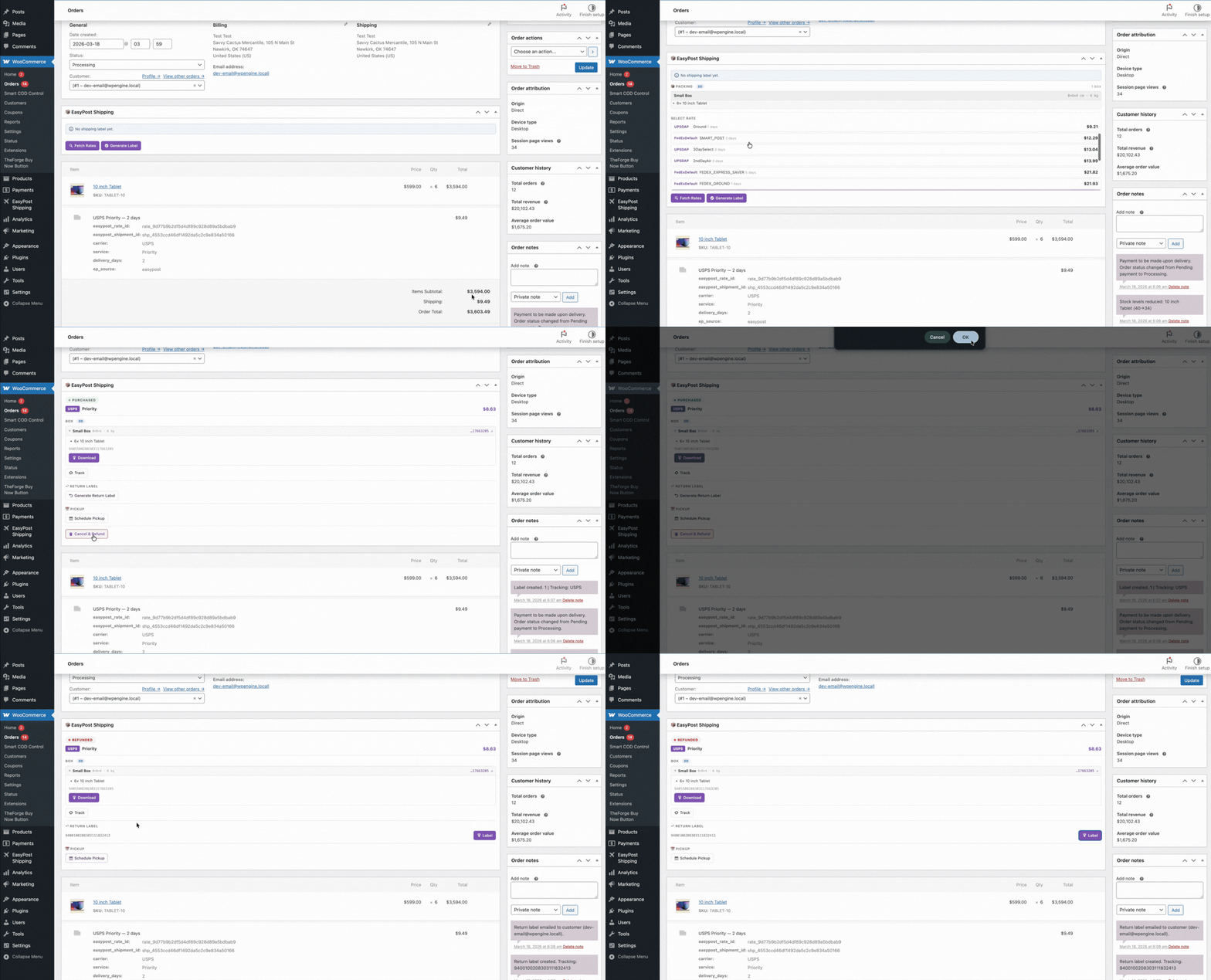
The Labels Panel: What It Is
The labels panel lives directly inside the WooCommerce orders screen. You don’t need to visit a separate dashboard or log into a carrier portal. Every order you have in WooCommerce is accessible from the same interface you already use to manage your store.
From the labels panel you can:
- Generate a label for any individual order in one click
- Select multiple orders and generate all their labels at once
- Download all generated labels as a single merged PDF
- Void labels you no longer need
- Track shipment status without leaving WordPress
How Bulk Label Generation Works
Select your orders using the standard WooCommerce order checkboxes, then choose Generate Labels from the bulk actions dropdown. The plugin sends each order’s details to EasyPost — customer address, package dimensions, selected carrier service — and receives a label back for each one.
The plugin uses the shipping service the customer chose at checkout wherever possible. If no carrier was selected (for example, on orders placed before the plugin was installed), you can configure a default fallback carrier and service for bulk generation.
Merging Labels into a Single PDF
Once labels are generated, click Print All Labels. The plugin fetches every generated label and merges them into a single PDF file — one download, one print job. If you’re using a thermal label printer (which you should be — they’re dramatically faster than laser or inkjet for shipping labels), the PDF is formatted to print one label per page.

Voiding Labels
Printed a label for an order that was then cancelled? No problem. Void the label directly from the order screen and EasyPost will request a refund from the carrier. Most carriers process voids within 24–48 hours.
Package Dimensions and Weight
For accurate labels, the plugin needs package dimensions and weight. You can set these at the product level (the plugin reads WooCommerce’s built-in weight and dimensions fields) or define custom boxes at a store level. The 3D bin packing engine figures out the best box combination automatically — you don’t have to calculate it manually.
Setting Up Your Default Carrier
Go to WooCommerce → Settings → Shipping → EasyPost to configure which carrier and service are used when generating labels without an explicit customer choice. You can set different defaults for domestic and international orders.
Carrier Account Credentials
The plugin connects to EasyPost using your EasyPost API key, which in turn connects to your carrier accounts. You’ll need an EasyPost account (free) and at least one connected carrier account. EasyPost supports USPS, UPS, FedEx, DHL, and dozens of regional carriers — connect the ones relevant to your business.
Tips for High-Volume Stores
- Sort orders by status before bulk-selecting — process “Processing” orders as a batch to avoid accidentally labelling “On Hold” orders
- Use a thermal label printer — laser labels work but thermal printers are faster and the consumables are cheaper
- Set up automatic order status updates — the plugin can move orders to “Shipped” automatically once a label is generated
- Schedule your fulfilment run — generate all your labels at the same time each day, just before your carrier pickup window
Need help setting up the labels panel? Visit the ThePluginForge support page for documentation and assistance.