Setting up WooCommerce order tracking for customers is one of the most effective ways to reduce post-purchase anxiety, cut support tickets, and improve the overall shopping experience. When buyers can see exactly where their package is, they stop emailing you to ask. This guide walks through everything you need to offer professional, real-time shipment tracking on your WordPress store.
Why Order Tracking Reduces Support Volume
“Where is my order?” is the most common customer support question for e-commerce stores — accounting for up to 40% of all support tickets according to industry surveys. Every one of those tickets costs time and money. Automated order tracking solves the problem at the source by proactively giving customers the information they are looking for before they have to ask.
Beyond cutting support volume, tracking improves customer satisfaction scores and encourages repeat purchases. Customers who have a transparent post-purchase experience are significantly more likely to buy again.
How WooCommerce Order Tracking Works
WooCommerce does not include built-in carrier tracking out of the box. When an order ships, the standard workflow is to manually enter a tracking number in the order notes and send the customer an email. The customer then has to go to the carrier website and enter the number themselves.
A proper tracking integration goes further: it delivers a clickable tracking link directly in the customer email, updates the order status in real time as the package moves through the carrier network, and optionally sends automated notifications at key milestones (shipped, out for delivery, delivered).
Setting Up Order Tracking with EasyPost for WooCommerce
The EasyPost for WooCommerce plugin by ThePluginForge makes professional order tracking automatic. Here is how it works from the moment you purchase a label:
Automatic Tracking Number Assignment
When you buy a shipping label through the EasyPost plugin, the tracking number is automatically saved to the WooCommerce order. No copying and pasting required.
Customer Notification Emails
The plugin hooks into WooCommerce’s native email system. When a label is purchased, it triggers the standard “Order Shipped” email with the carrier name, tracking number, and a direct link to the tracking page — all formatted consistently with your store branding.
Real-Time Tracking Webhooks
EasyPost pushes tracking updates to your store via webhooks. As the package moves — picked up by carrier, in transit, out for delivery, delivered — the order status in WooCommerce updates automatically. You can configure the plugin to send email notifications to the customer at each milestone.
Displaying Tracking Information on the Order Status Page
WordPress allows you to customize the WooCommerce “My Account” order detail page. With EasyPost for WooCommerce, the tracking number and status are surfaced directly on this page, so customers can check their shipment status without leaving your site. This keeps the experience on-brand and reduces dependency on third-party tracking sites.
Tracking Link Formats by Carrier
The plugin automatically formats tracking links for each carrier:
- USPS: links to tools.usps.com
- UPS: links to ups.com/track
- FedEx: links to fedex.com/tracking
- DHL: links to dhl.com/track
Customers click through to the carrier’s official tracking page with the tracking number pre-filled. Clean and simple.
Proactive Delivery Exception Notifications
Packages sometimes encounter problems: incorrect addresses, missed delivery attempts, customs holds on international shipments. EasyPost’s tracking API surfaces these exceptions. The plugin can notify both you and the customer when an exception occurs, giving you time to resolve the issue before it becomes a complaint or a chargeback.
This proactive exception handling is one of the features that separates ThePluginForge’s EasyPost plugin from simpler tracking solutions.
Custom Tracking Pages for Your Brand
For stores that want a fully branded tracking experience, the plugin supports creating a custom tracking page on your WordPress site. Customers enter their order number or tracking number and see status updates in your store’s design — no carrier website involved. This is particularly effective for building brand loyalty and reducing the “is this legit?” friction that can arise when customers are redirected to unfamiliar pages.
Tracking for International Orders
International shipments typically switch between multiple carriers (EasyPost calls this “carrier hand-off”) as they pass through customs and local delivery networks. EasyPost’s tracking API handles this automatically, continuing to track the package even after it transfers to a local postal service in the destination country.
Conclusion
Setting up WooCommerce order tracking properly transforms the post-purchase experience from an anxiety-inducing black box to a transparent, confidence-building journey. With the EasyPost for WooCommerce plugin from ThePluginForge, tracking is automatic from the moment you print a label — no manual data entry, no copying tracking numbers, no separate tracking service needed.
Ready to set it up? Visit ThePluginForge support for documentation and live assistance.
Frequently Asked Questions
Does WooCommerce have built-in shipment tracking?
WooCommerce includes basic order notes where you can paste a tracking number, but it does not provide automatic tracking updates, carrier-formatted links, or real-time status notifications. A plugin like EasyPost for WooCommerce is required for full tracking functionality.
Can I send tracking SMS notifications to customers?
Yes, with an additional SMS plugin connected to WooCommerce’s order status hooks. EasyPost for WooCommerce fires the appropriate WooCommerce hooks when tracking statuses update, which compatible SMS plugins can act on.
What happens to tracking if I use multiple carriers?
No issue. EasyPost handles tracking for all carriers through a single API. The plugin stores carrier-specific tracking data per order and formats links appropriately regardless of which carrier was used.
Can customers track orders without creating an account?
Yes. WooCommerce supports guest order tracking by order number and email address. The tracking information delivered via email is accessible to guest customers without logging in.
Once a label is generated and a package is on its way, the tracking experience is one of the most important parts of your customer’s post-purchase journey. “Where is my order?” is the most common customer service question in ecommerce — and with proper tracking automation, you can answer it before the customer even asks.
How EasyPost Tracking Works
EasyPost provides a unified tracking API that works across all connected carriers. When a label is generated with the TheForge EasyPost Shipping plugin, a tracking number is automatically associated with the order in WooCommerce.
EasyPost then monitors the shipment and sends webhook events to your site as the package moves through the carrier network — picked up, in transit, out for delivery, delivered, exception, and so on.
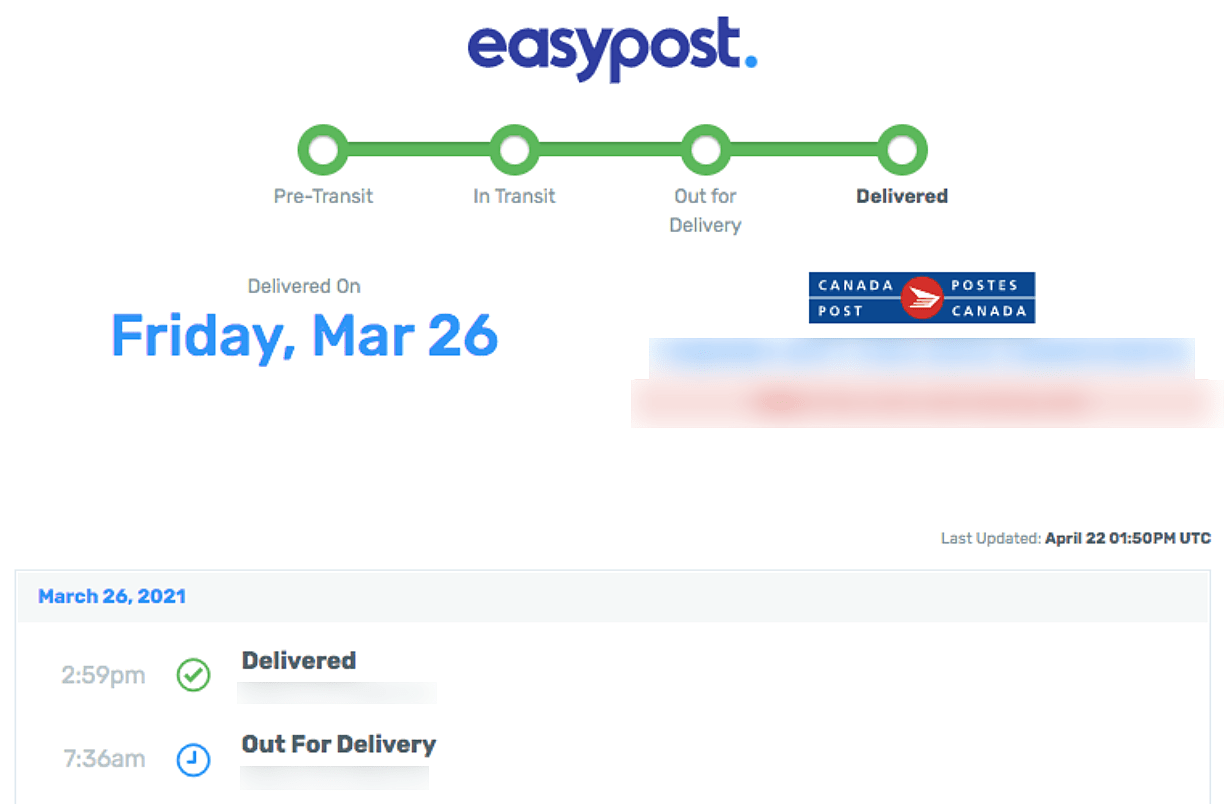
Automatic Order Status Updates
The plugin listens for EasyPost tracking webhooks and updates your WooCommerce order status automatically. You can configure which tracking events trigger which order status changes:
- Label created → move order to “Shipped”
- In transit → add order note with tracking update
- Out for delivery → add order note
- Delivered → move order to “Completed”
- Exception / delivery failure → add flagged order note for manual review
Customer Tracking Emails
When a label is generated, the plugin can automatically email the customer their tracking number and a link to the carrier’s tracking page. The email uses your existing WooCommerce transactional email templates, so it matches your branding.
For each carrier, EasyPost provides a direct tracking URL. The plugin formats this into a customer-friendly link — e.g. “Track your USPS shipment →” — rather than a raw tracking number the customer has to paste somewhere.
Tracking Numbers on the Order Page
Every generated tracking number appears on the WooCommerce order screen (for you as the admin) and on the customer’s My Account → Orders page. Customers can click the tracking link directly from their account without needing to find the email.
Webhook Setup
For tracking webhooks to work, EasyPost needs to be able to send events to your site. The plugin provides your webhook URL in the settings — you paste this into your EasyPost dashboard under Webhooks. Once configured, tracking events flow automatically.
If your site is on a local development environment or behind a firewall, webhooks won’t be receivable — this is expected. Webhooks only work on publicly accessible production sites.
Tracking Without Webhooks
If webhooks aren’t an option, the plugin can poll EasyPost for tracking updates on a schedule using WordPress cron. This is less real-time than webhooks but still gives you automated status updates — just with a delay of up to your configured polling interval.
Need help configuring tracking? Visit the ThePluginForge support page.