We have been working hard behind the scenes, and today we are excited to share everything that landed in the Smart COD Control v1.3 release cycle. This is the biggest update to the plugin since launch — two flagship features, a redesigned admin experience, and a stack of smaller improvements under the hood.

What Is Smart COD Control?
Smart COD Control is a WooCommerce plugin that gives store owners complete control over when Cash on Delivery is available at checkout. Hide COD by cart value, shipping zone, product category, customer history, and more — all without writing any code. It also includes fraud prevention tools to reduce fake orders and RTO rates.
New in v1.3.0: Visual Rule Builder
Before v1.3, setting COD rules required navigating separate settings panels for each condition type. The new Visual Rule Builder brings everything into one unified drag-and-drop interface.
Key capabilities:
- Create rule groups with multiple conditions
- AND logic within a group, OR logic between groups
- Filter by cart total, product, category, shipping zone, state, user role, coupon, and order history
- One-click pre-built rule templates for the most common use cases
- Rules activate instantly — no cache flush needed
New in v1.3.1: OTP Phone Verification
Fake COD orders are a significant cost center for stores in emerging markets. A customer who never intended to accept delivery places an order impulsively, you ship the product, and it comes back at your expense. OTP verification addresses this at the source.
When enabled, customers selecting Cash on Delivery must verify their phone number with a one-time SMS code before the order is placed. No code — no order. The friction is minimal for genuine buyers but effectively eliminates throwaway orders.
Supported SMS providers:
- Twilio — global coverage, straightforward setup with Account SID and Auth Token
- Vonage — competitive rates in South Asia and the Middle East, alphanumeric sender IDs

Enhanced Blacklisting and Approval Workflow
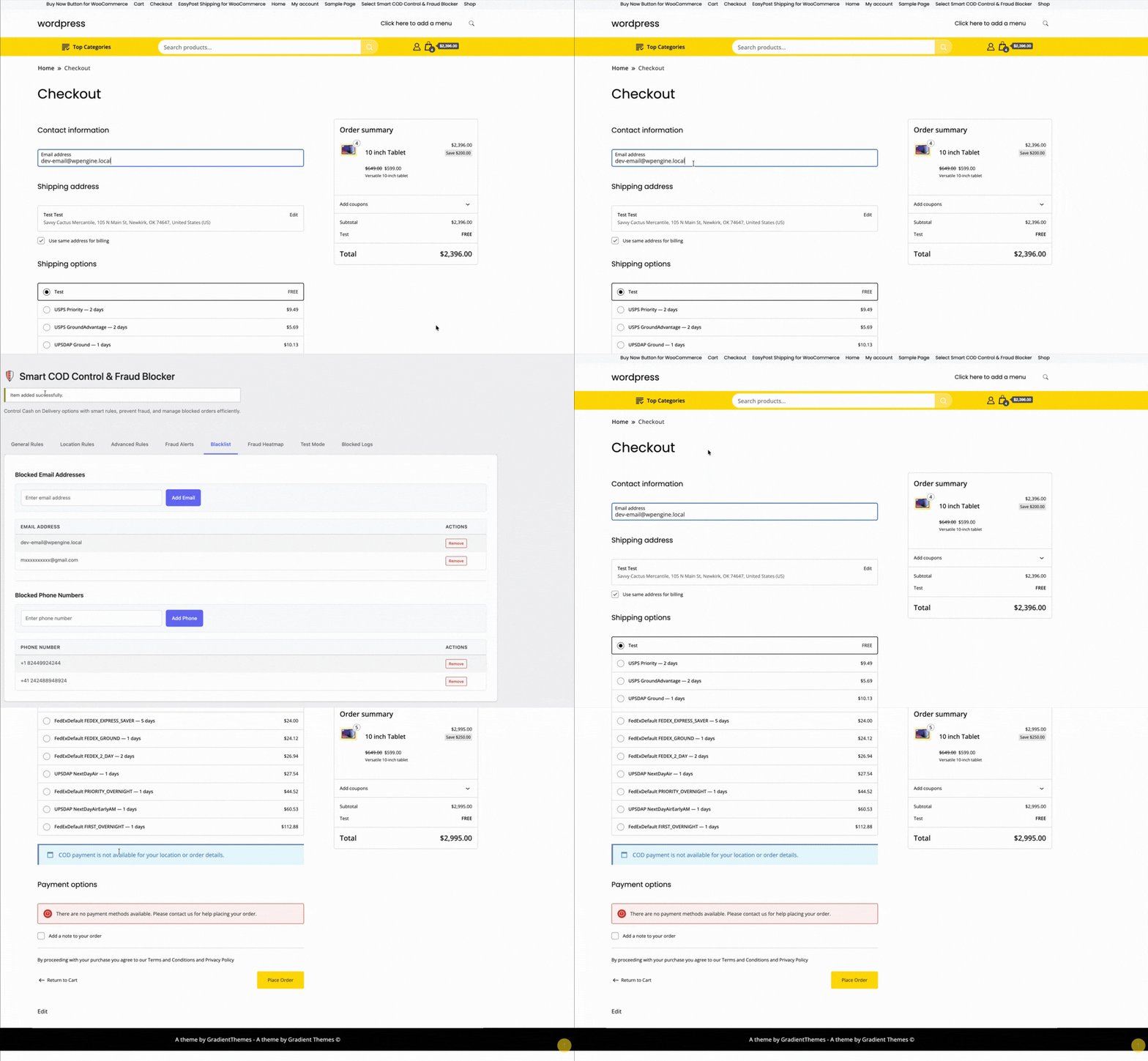
The blacklist system has been upgraded with a new admin approval workflow. Flag customers as requiring manual review — their COD orders go into a pending queue that your team approves or rejects before processing. This is ideal for stores with VIP or high-risk order tiers.
Fraud Analytics and Heatmap
The analytics tab now includes a geographic view of COD order activity. Spot regions with elevated cancellation rates at a glance and feed that data back into your Rule Builder to tighten restrictions exactly where they are needed.
Full Changelog
v1.3.1
- Added: OTP phone verification at checkout for COD orders
- Added: Twilio SMS integration
- Added: Vonage SMS integration
- Added: Customisable OTP message template
- Fixed: Rule Builder condition ordering edge case on save
v1.3.0
- Added: Visual Rule Builder with AND/OR logic
- Added: Pre-built rule templates
- Added: Drag-and-drop rule group reordering
- Improved: Admin UI redesign for COD settings
v1.2.0
- Added: Admin approval / blacklist workflow
- Added: Fraud analytics dashboard
- Improved: Performance on high-traffic stores
How to Update
Update via WordPress Dashboard → Plugins → Updates. All existing settings are migrated automatically — no reconfiguration needed. After updating, visit the new Rule Builder tab to explore the interface, and the OTP Settings tab to enable phone verification.
Questions or feedback? Reach us through the support page — we read every message.
Smart COD Control v1.3.1 supports Vonage (formerly Nexmo) as an SMS provider for OTP verification. Vonage offers competitive rates across South Asia, the Middle East, and Southeast Asia — regions where Cash on Delivery is most popular. This guide walks you through the full setup.
What You Will Need
- A Vonage API account (free trial available)
- Smart COD Control v1.3.1 or newer installed and active
Step 1: Create a Vonage Account
- Go to vonage.com and click Sign Up Free.
- Verify your email. Vonage provides free trial credit so you can test SMS immediately.
- Once logged in, go to the Vonage API Dashboard.
Step 2: Get Your API Credentials
- On the dashboard, find the API key and API secret at the top.
- Copy both values — you will paste them into Smart COD Control.
Tip: Never share your API secret publicly. Treat it like a password.
Step 3: Set Your Sender Name
With Vonage you can use an alphanumeric sender ID (e.g., MyStore) in most countries. Go to Account → API settings in the Vonage dashboard to configure your default sender name. Note that some countries (like India) require a registered DLT sender ID — check Vonage documentation for your region.
Step 4: Configure Smart COD Control
- Go to WooCommerce → Smart COD Control → OTP Settings.
- Toggle Enable OTP Verification to ON.
- Under SMS Provider, select Vonage.
- Enter your API Key and API Secret.
- Set the From Name (your brand name or phone number).
- Click Save Settings.
Step 5: Customise the OTP Message
Use the {otp} placeholder in your message. Keep it under 160 characters. Example:
Your MyStore COD verification code is {otp}. Do not share this code.
Step 6: Test It
- Open an incognito window and go through checkout.
- Select Cash on Delivery.
- Enter your own phone number and click Send Code.
- You should receive an SMS from Vonage within seconds.
- Enter the code and complete the order.
Vonage vs Twilio — Which Should You Choose?
| Feature | Vonage | Twilio |
|---|---|---|
| Best for | Asia, Middle East | Global / US-heavy |
| Pricing | Competitive in APAC | Standard global rates |
| Sender ID | Alphanumeric supported | Numeric only in many regions |
| Free trial | Yes | Yes |
Both providers work seamlessly with Smart COD Control. Choose based on your geography and pricing preference — you can switch at any time from the plugin settings without losing data.
Smart COD Control supports two SMS providers for OTP verification: Twilio and Vonage. This guide walks you through setting up Twilio — the most widely used SMS API worldwide — step by step.

What You Will Need
- A Twilio account (free trial is fine for testing)
- Smart COD Control v1.3.1 or newer installed and active
- A verified Twilio phone number
Step 1: Create a Twilio Account
- Go to twilio.com and sign up for a free account.
- Verify your email address and phone number during signup.
- Once logged in, you will land on the Twilio Console Dashboard.
Step 2: Get Your API Credentials
- Find the Account Info section on the dashboard.
- Copy your Account SID — it starts with
AC. - Copy your Auth Token — click the eye icon to reveal it.
Step 3: Get a Twilio Phone Number
- Go to Phone Numbers → Manage → Buy a Number.
- Filter by your country and ensure the number has SMS capability.
- Click Buy (free trial accounts get one number at no charge).
- Copy the number in E.164 format, e.g.
+14155552671.
Note: On a free trial, Twilio can only send SMS to verified numbers. Upgrade to a paid account to send to any number.
Step 4: Configure Smart COD Control
- Go to WooCommerce → Smart COD Control → OTP Settings.
- Toggle Enable OTP Verification to ON.
- Under SMS Provider, select Twilio.
- Paste your Account SID and Auth Token.
- Enter your Twilio phone number in the From Number field (include the
+and country code). - Click Save Settings.
Step 5: Customise the OTP Message
Use the placeholder {otp} where you want the code to appear. Example:
Your verification code for your COD order at MyStore is {otp}. Valid for 10 minutes.
Step 6: Test It
- Open your store in an incognito window and add a product to cart.
- At checkout, select Cash on Delivery.
- Enter a verified phone number, click Send Code, and enter the received OTP.
- Complete the order to confirm everything works.
Troubleshooting
- SMS not arriving — Double-check your Account SID, Auth Token, and From Number. Trial accounts can only send to verified numbers.
- Invalid credentials error — Re-copy credentials from the console and watch for accidental whitespace.
- Country not supported — Some countries require a local Twilio number. Check Twilio coverage docs.
Once connected, customers receive OTP codes within seconds and your COD cancellation rate will start dropping immediately.
Fake orders are the silent killer of COD profitability. A customer places an order impulsively, ignores delivery attempts, and your store absorbs the return shipping cost. Multiply that by hundreds of orders per month and the numbers get painful fast.
Smart COD Control v1.3.1 introduces OTP (One-Time Password) Phone Verification — a simple, effective friction layer that stops unserious buyers before the order is even placed.
How OTP Verification Works
- The customer selects Cash on Delivery at checkout.
- A phone number field appears with a Send Code button.
- An SMS with a 6-digit code is sent to their number via your configured SMS provider (Twilio or Vonage).
- The customer enters the code. Only after successful verification can they place the order.
- The verified phone number is saved to the order for your records.
The entire flow happens inline at checkout — no page reload, no redirect. It takes under 30 seconds for a legitimate customer and completely stops automated or throwaway orders.
Why OTP Is More Effective Than Blacklists Alone
Blacklists are reactive — you add a phone number or address after you get burned. OTP verification is proactive. Customers who are not serious enough to verify a real phone number will not proceed, and your inventory stays reserved for genuine buyers.
Studies from COD-heavy markets show 30–60% reduction in RTO (Return to Origin) rates after implementing OTP gating on COD orders.
Supported SMS Providers
- Twilio — global coverage, easy setup with Account SID + Auth Token
- Vonage (formerly Nexmo) — competitive rates for South Asia and the Middle East
Configuring OTP in Smart COD Control
- Go to WooCommerce → Smart COD Control → OTP Settings.
- Enable OTP Verification for COD.
- Choose your SMS provider (Twilio or Vonage).
- Enter your API credentials.
- Set the sender name / number that will appear on the SMS.
- Optionally customise the OTP message template.
- Save settings and test with a real phone number before going live.
OTP + Rule Builder = Complete Fraud Defense
Use the Visual Rule Builder to restrict COD to specific zones and cart ranges, and layer OTP verification on top. Together they give you the most complete COD fraud prevention available for WooCommerce — without any custom development.
Update to v1.3.1 from your WordPress dashboard to enable OTP today.